> ## Documentation Index
> Fetch the complete documentation index at: https://omnifit-64.mintlify.site/llms.txt
> Use this file to discover all available pages before exploring further.
# Send Information
> Contains information about the chat components in send information.
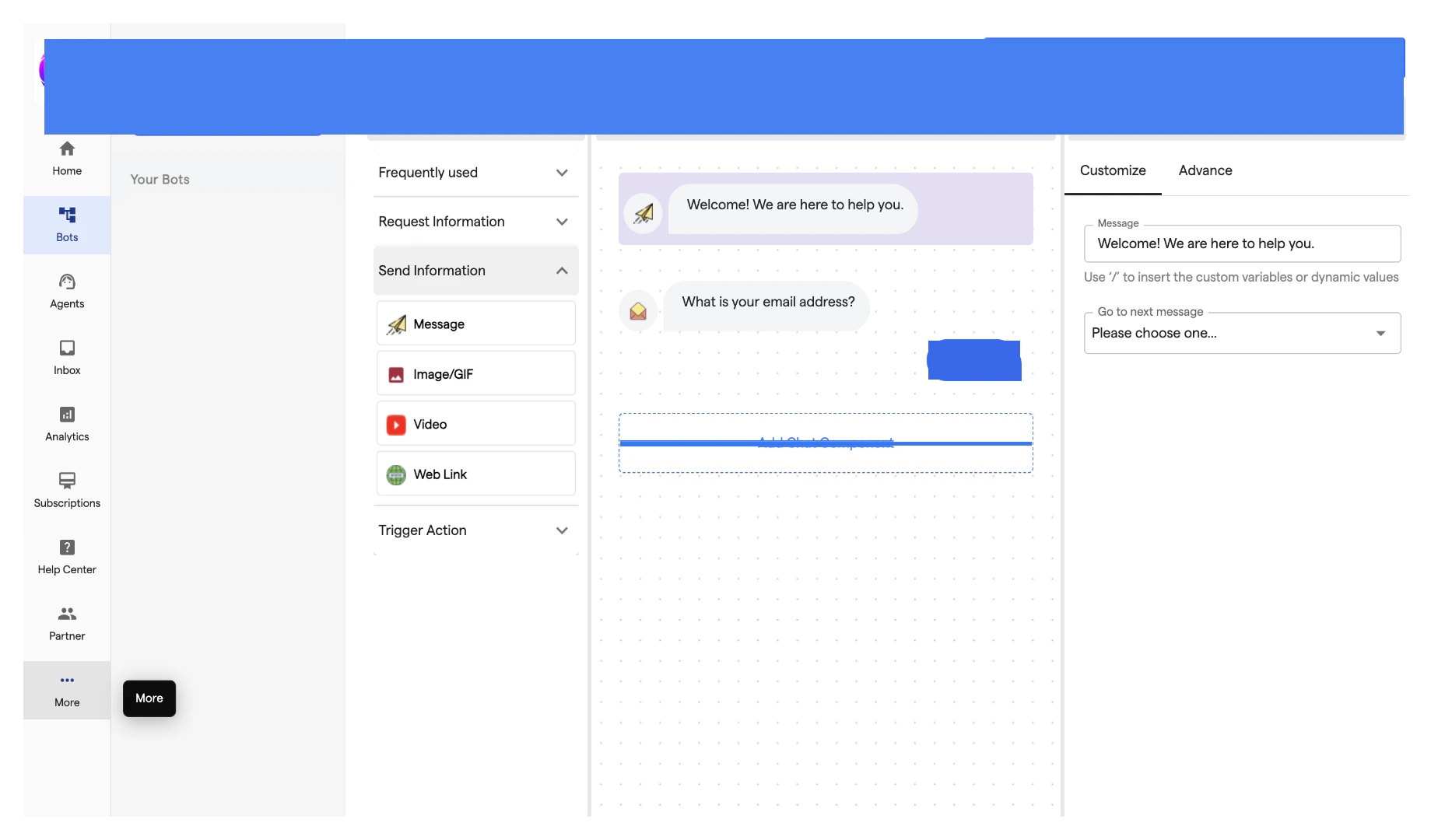
### **1. Message**
* It is used to send the information message to the user.
* Select the "Message" component under send information.
* You can add a text message which you want to send as information in the customize section.
 ### **2. Image/GIF**
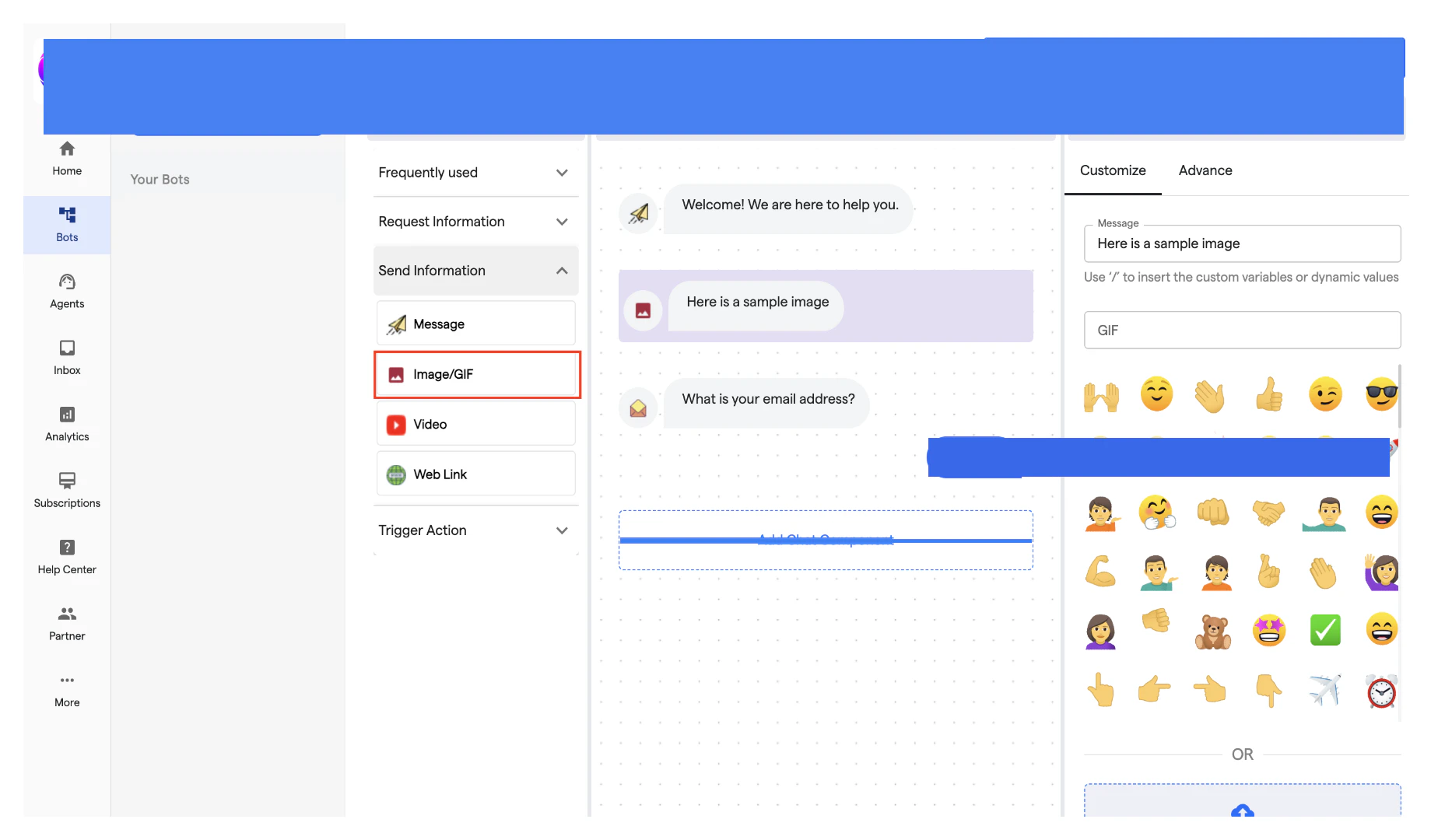
It is used to send a GIF or an Image.
* You can add a text message for your image or GIF.
* Select "Image/GIF" from the send information section.
* Add the text message you want to send along with the image/GIF.
* To send a GIF, search for it by name in the GIF section.
### **2. Image/GIF**
It is used to send a GIF or an Image.
* You can add a text message for your image or GIF.
* Select "Image/GIF" from the send information section.
* Add the text message you want to send along with the image/GIF.
* To send a GIF, search for it by name in the GIF section.
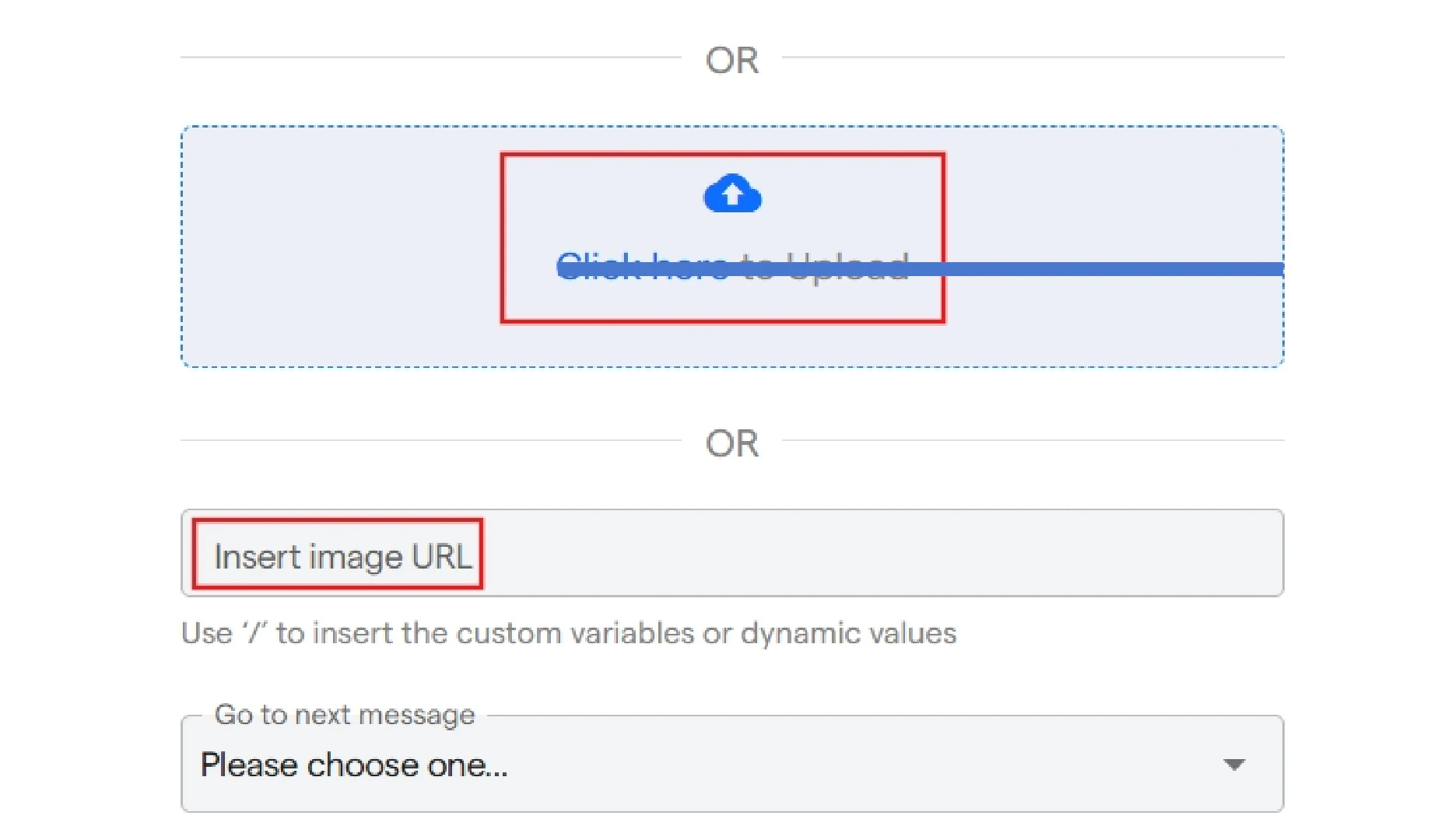
 * Or you can scroll down and upload an image from your device or paste the URL of the image.
 ### **3. Video**
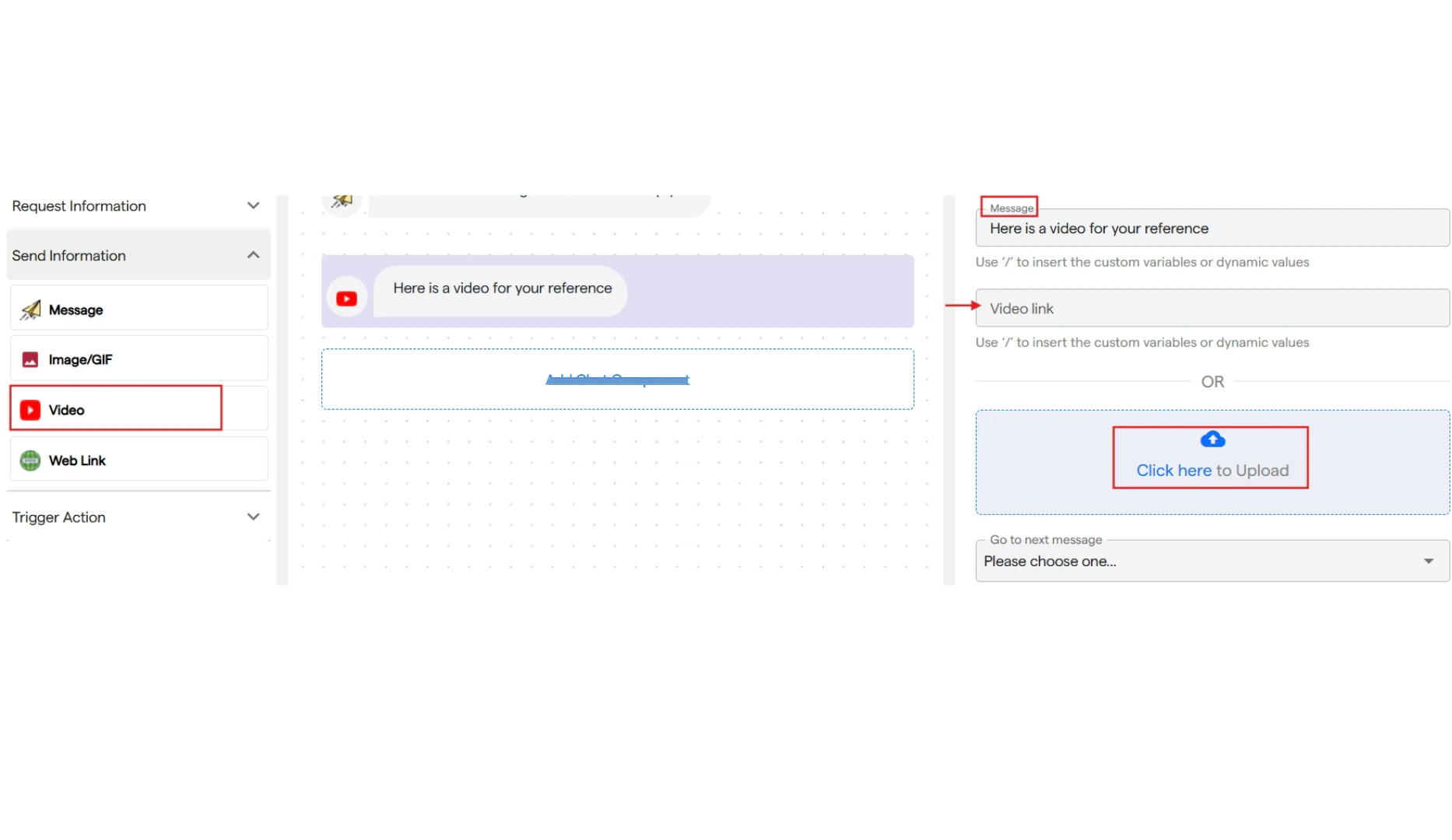
It is used to send a video message in the chat flow.
* You can enter a text message to be sent along with the video in the customize message menu.
* You can add a video link or upload it from your device.
Size of the video should not be more than 15 MB
### **3. Video**
It is used to send a video message in the chat flow.
* You can enter a text message to be sent along with the video in the customize message menu.
* You can add a video link or upload it from your device.
Size of the video should not be more than 15 MB
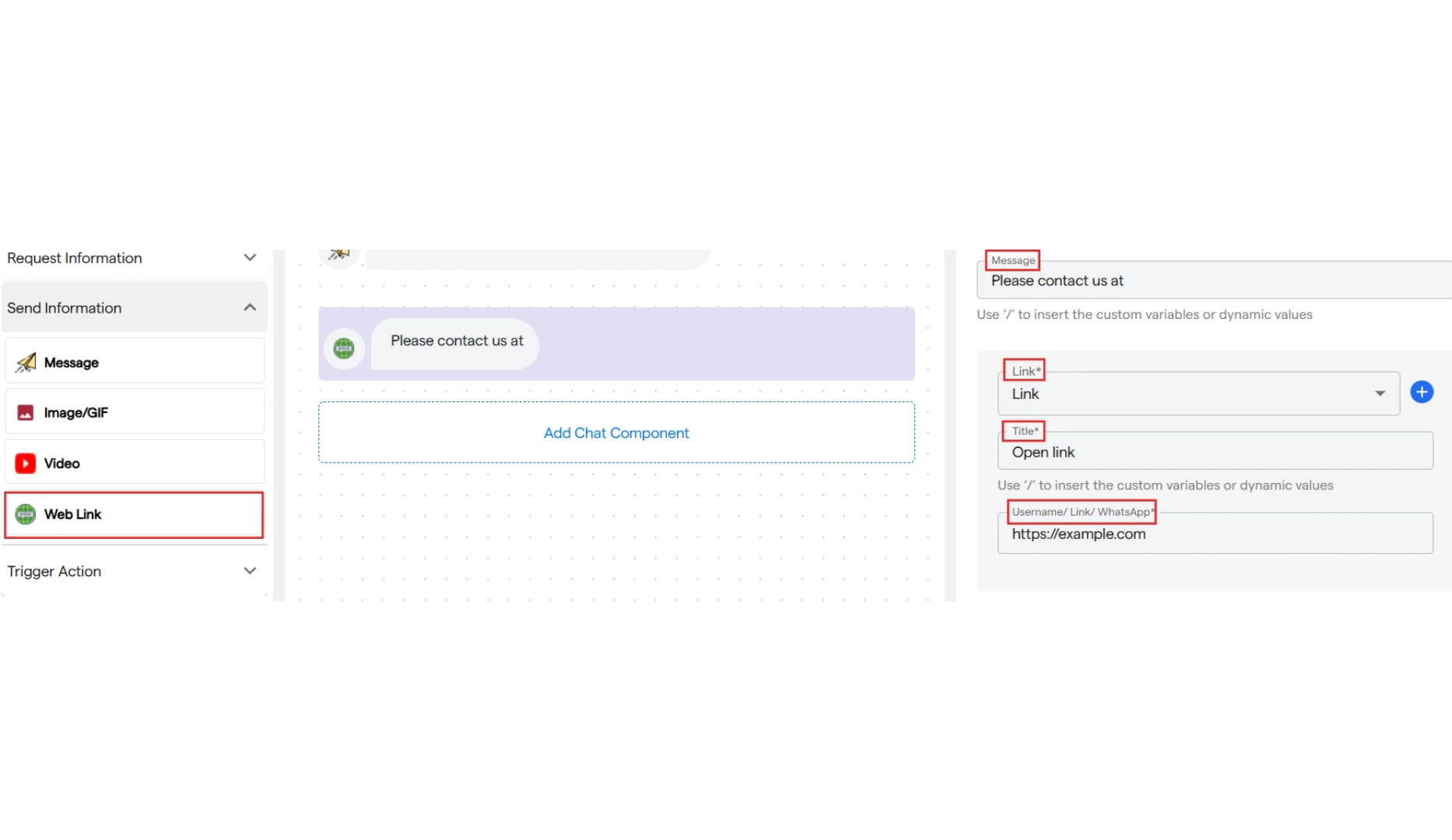
 ### **4. Web Link**
It is used to send a web link in the chat.
* You can enter a text message to send along with the link.
* Select the platform from the dropdown for which you are adding the link.
* Also, add a title for the link and insert the URL.
* You can add multiple links. When the user clicks on the title, they will be redirected to the page.
### **4. Web Link**
It is used to send a web link in the chat.
* You can enter a text message to send along with the link.
* Select the platform from the dropdown for which you are adding the link.
* Also, add a title for the link and insert the URL.
* You can add multiple links. When the user clicks on the title, they will be redirected to the page.