> ## Documentation Index
> Fetch the complete documentation index at: https://omnifit-64.mintlify.site/llms.txt
> Use this file to discover all available pages before exploring further.
# Website Chatbot
> This guide will walk you through the steps to create your Website Chatbot.
 1. To create your Website chatbot , you first need to visit the OmnifitAI Dashboard
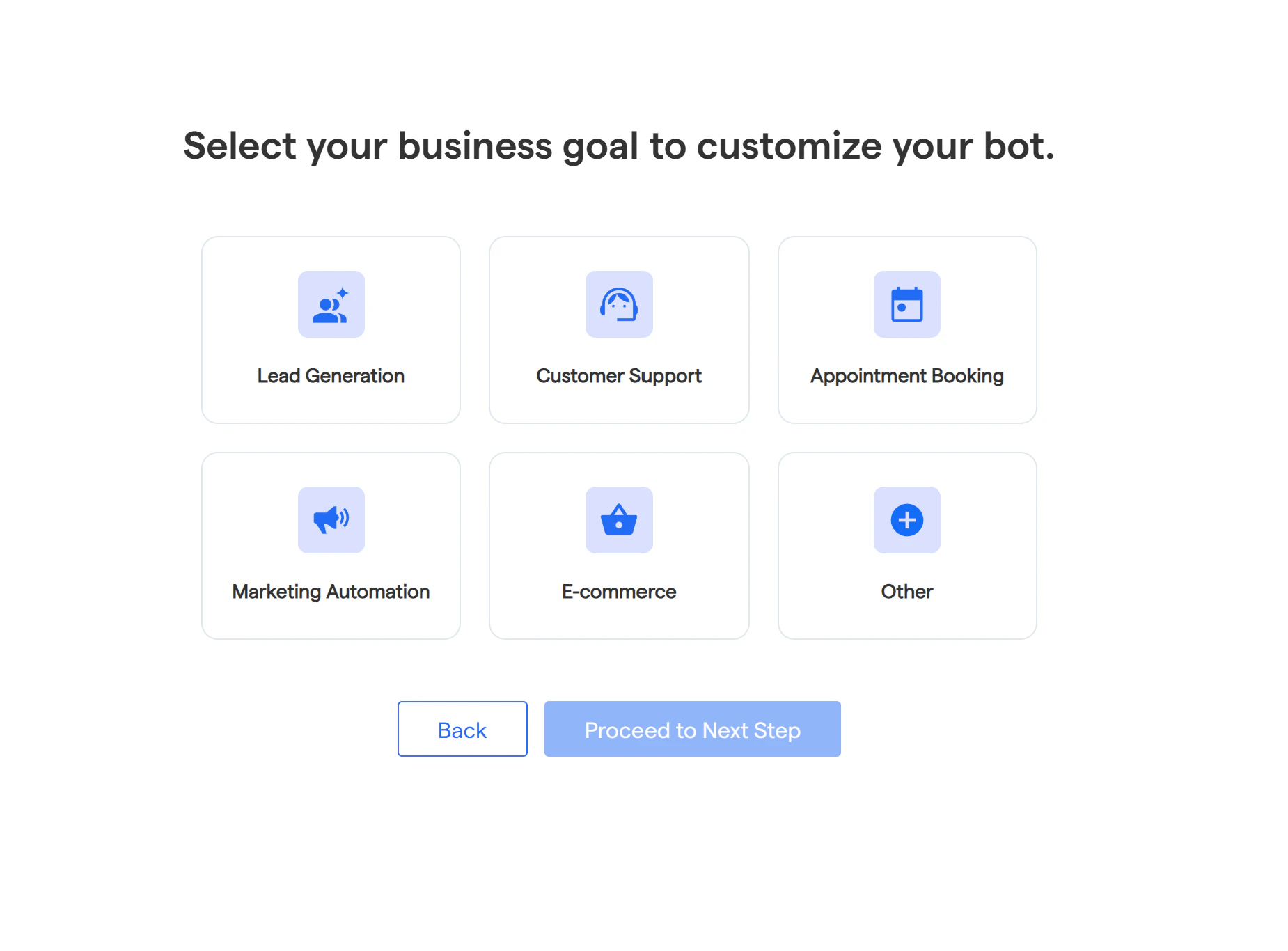
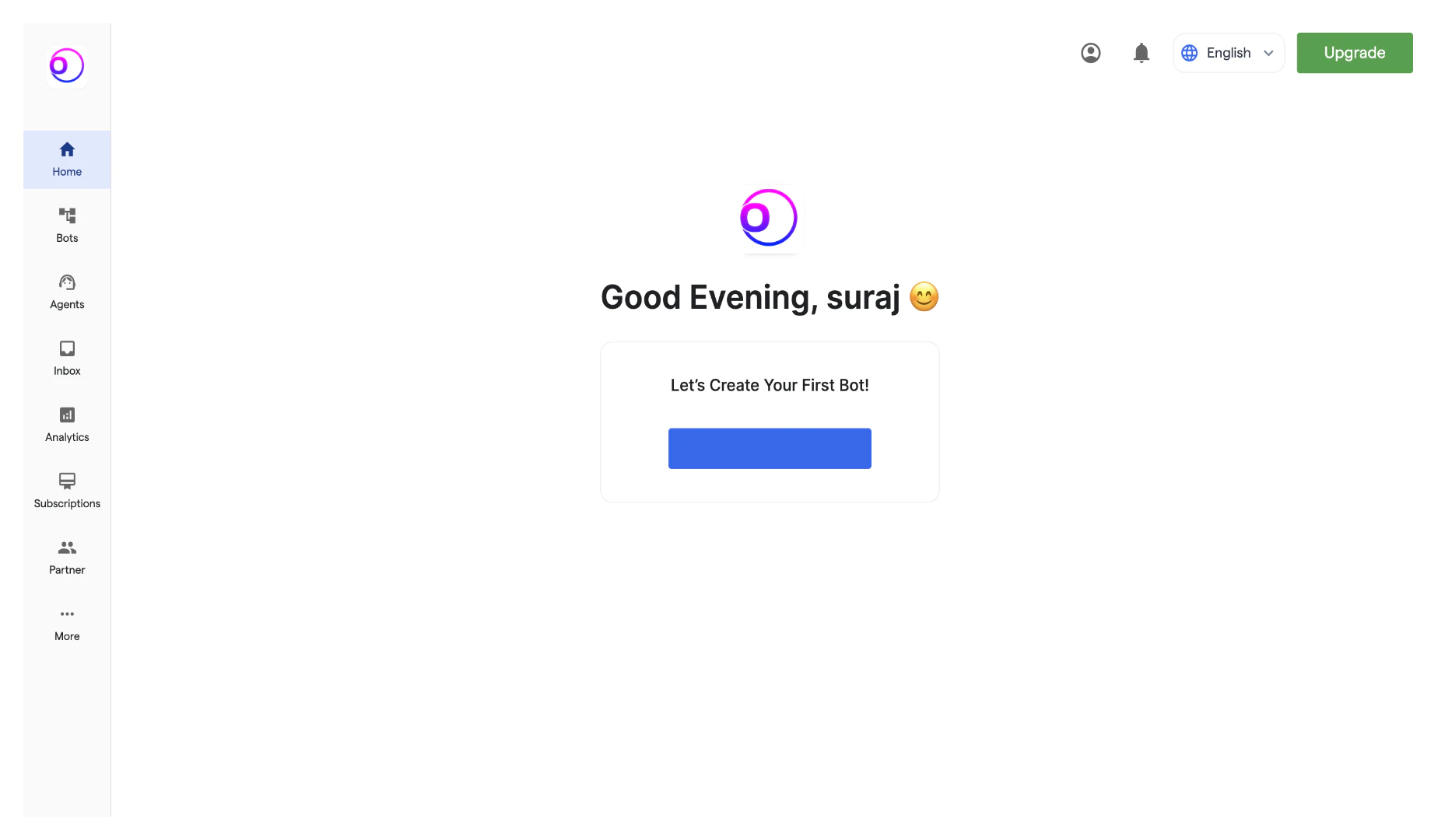 2. To start creating your new chatbot, click "Create New Bot." Select the primary purpose for creating your bot and proceed further.
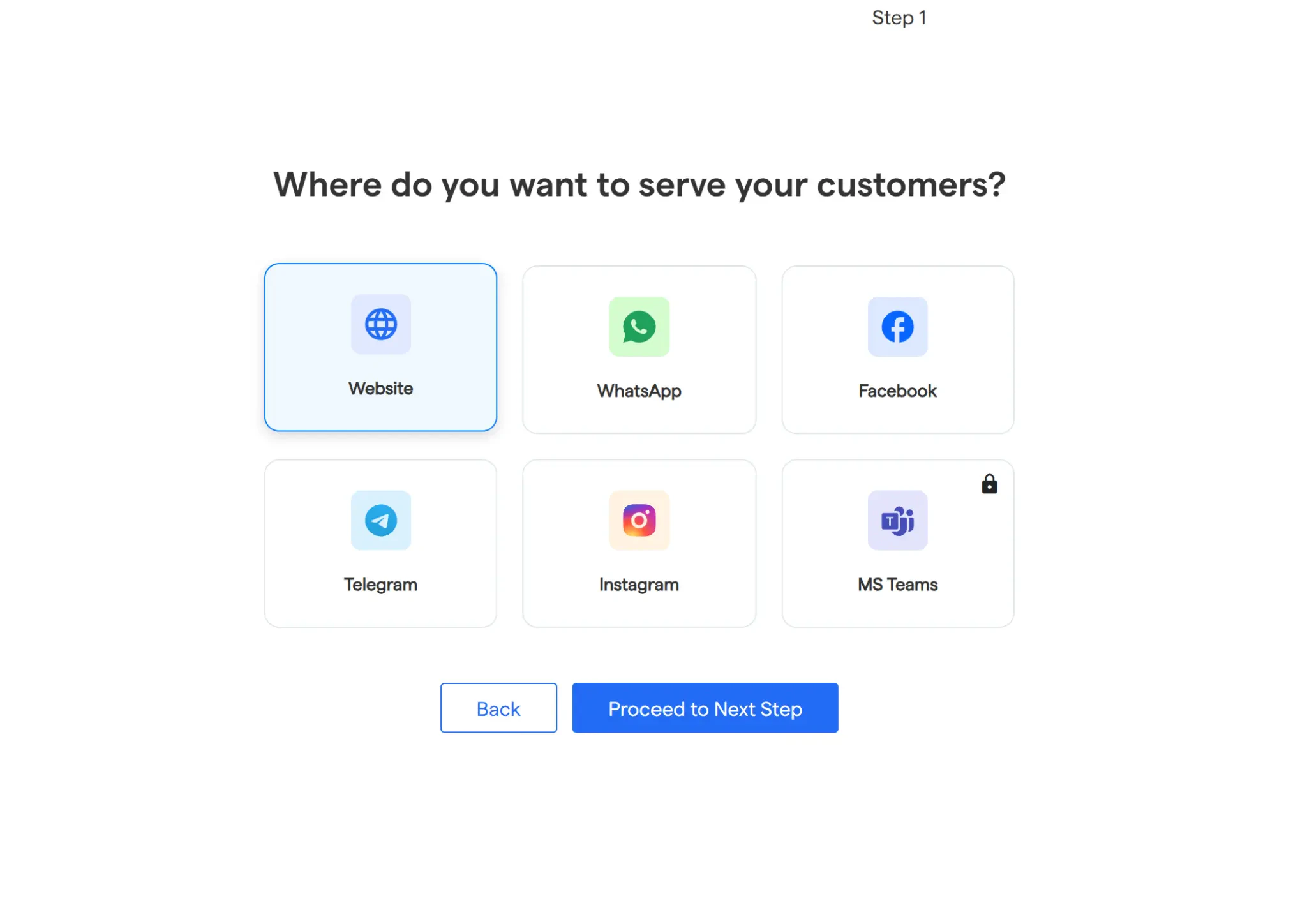
 3. Select the platform: “**Website Chatbot**”
 4. You will see a notification: "**Bot has been successfully created.**” Your bot has been successfully created. Then you will land up on this page, now you can configure the below mentioned items using the below links:

[Next: Landing Page Chatbot →](/how-botpenguin-works/landing_page_chatbot)
4. You will see a notification: "**Bot has been successfully created.**” Your bot has been successfully created. Then you will land up on this page, now you can configure the below mentioned items using the below links:

[Next: Landing Page Chatbot →](/how-botpenguin-works/landing_page_chatbot)