> ## Documentation Index
> Fetch the complete documentation index at: https://omnifit-64.mintlify.site/llms.txt
> Use this file to discover all available pages before exploring further.
# Groups
> This page contains all the necessary information regarding the group section in inbox panel.
## **Groups Section**
In the **Groups** section, you can create and manage groups of contacts to keep similar types of contacts organized in one place.
#### **Purpose of Groups**
Groups are primarily used to assemble similar types of contacts in one place for easy management. This feature is particularly useful for organizing contacts, applying group-specific actions, and filtering contacts.
Below are the steps to create and manage groups effectively:
#### **How to Create a Group**
1. **Navigate to the Groups Section**: Go to the "Groups" tab from your dashboard.
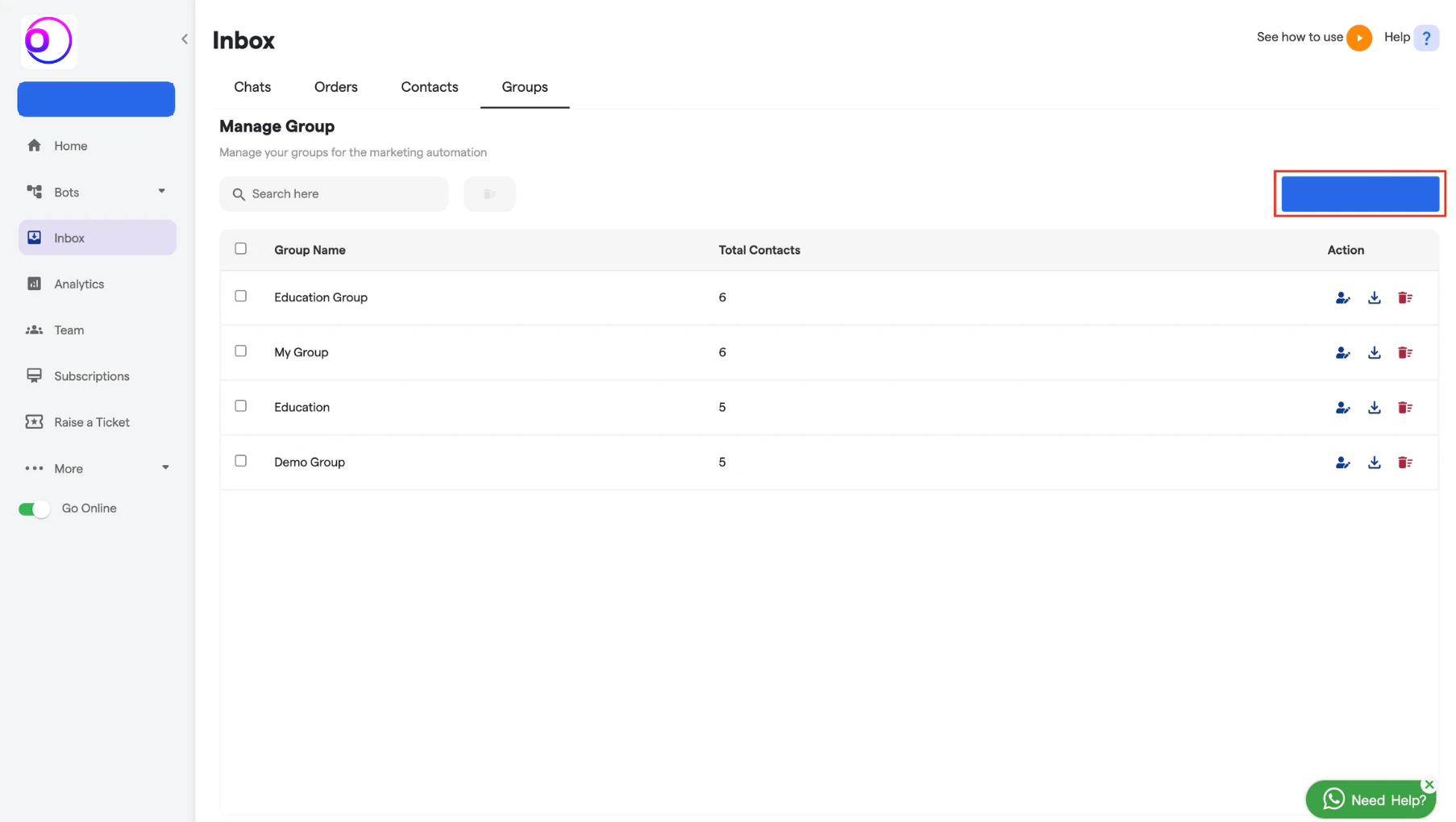
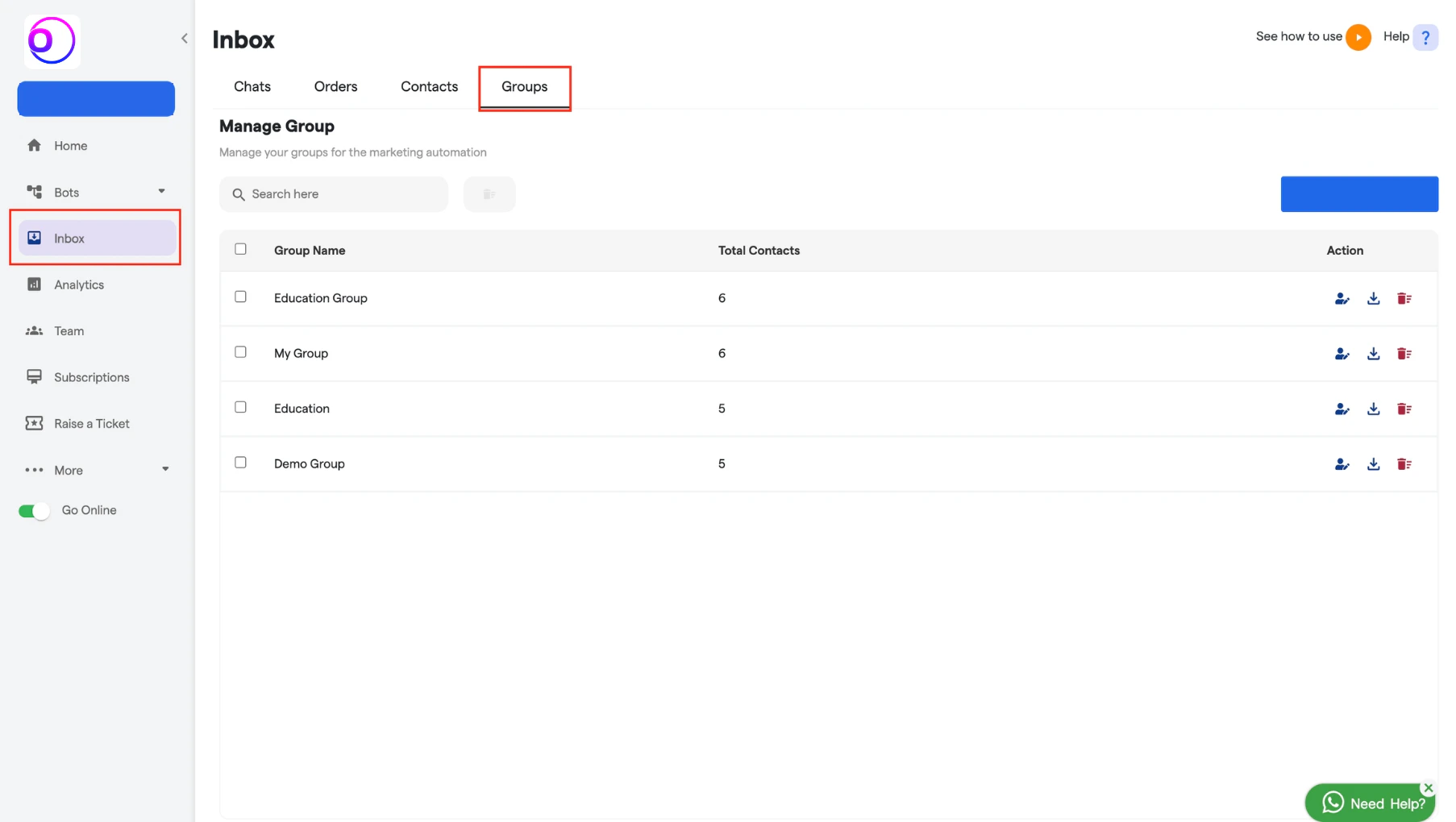 2. **Click on the "Create Group" Button**: On the right side of the page, you’ll find the **Create Group** button. Click on it.
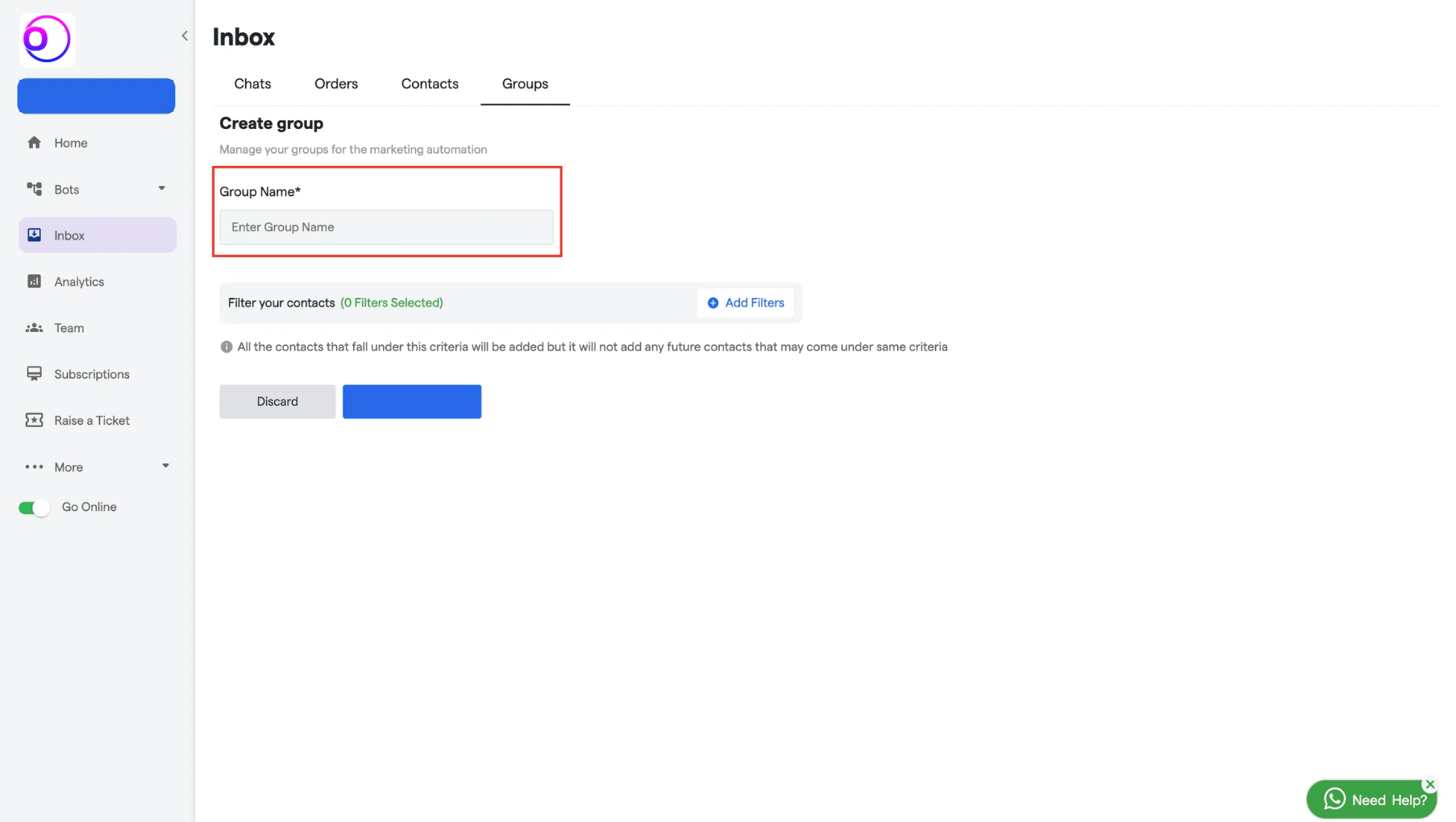
 3. **Enter Group Name**: A page will appear where you can enter the desired group name.
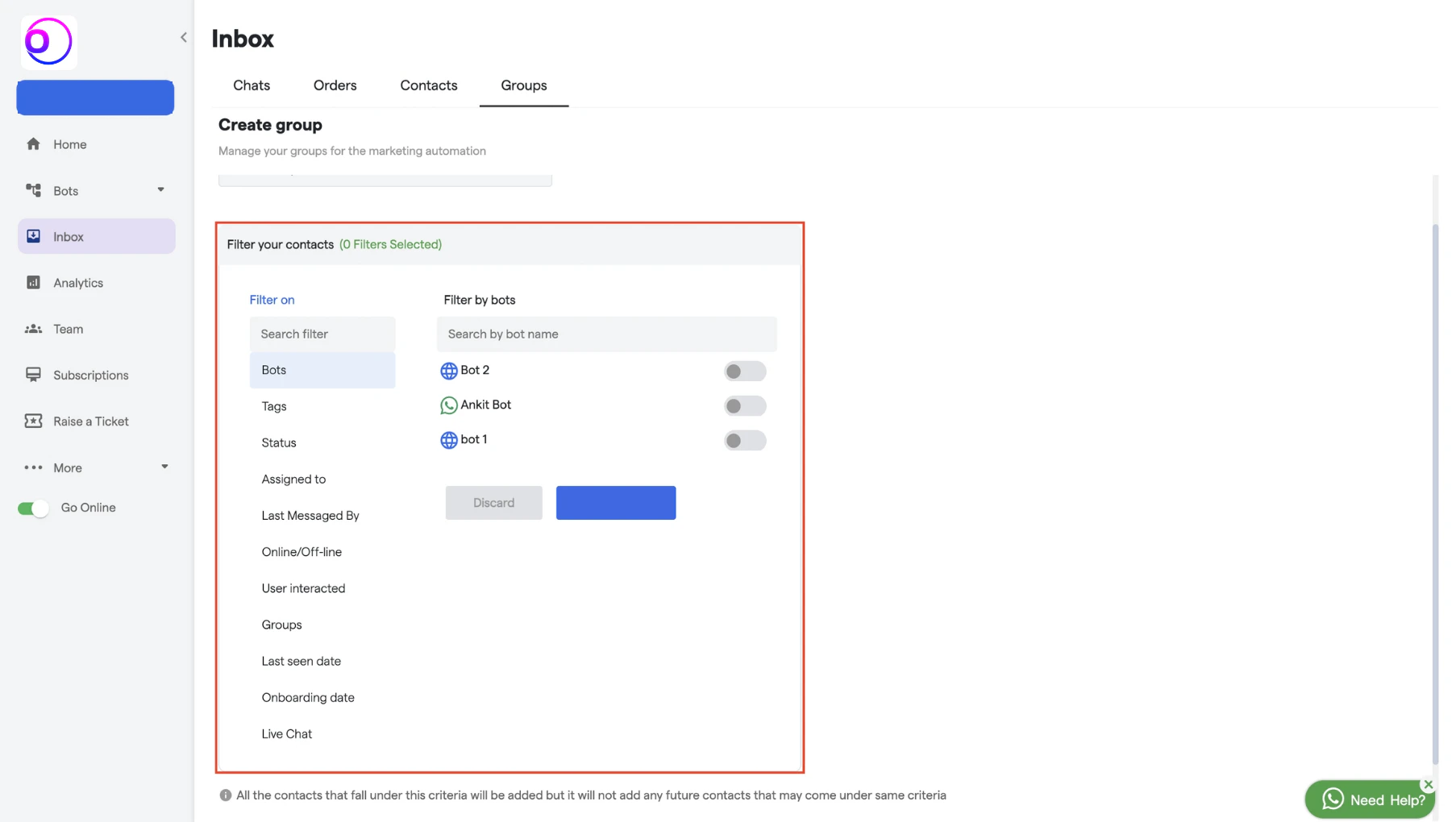
 4. **Add Contacts**: After naming the group, you can start adding contacts to the group by using the filters options.
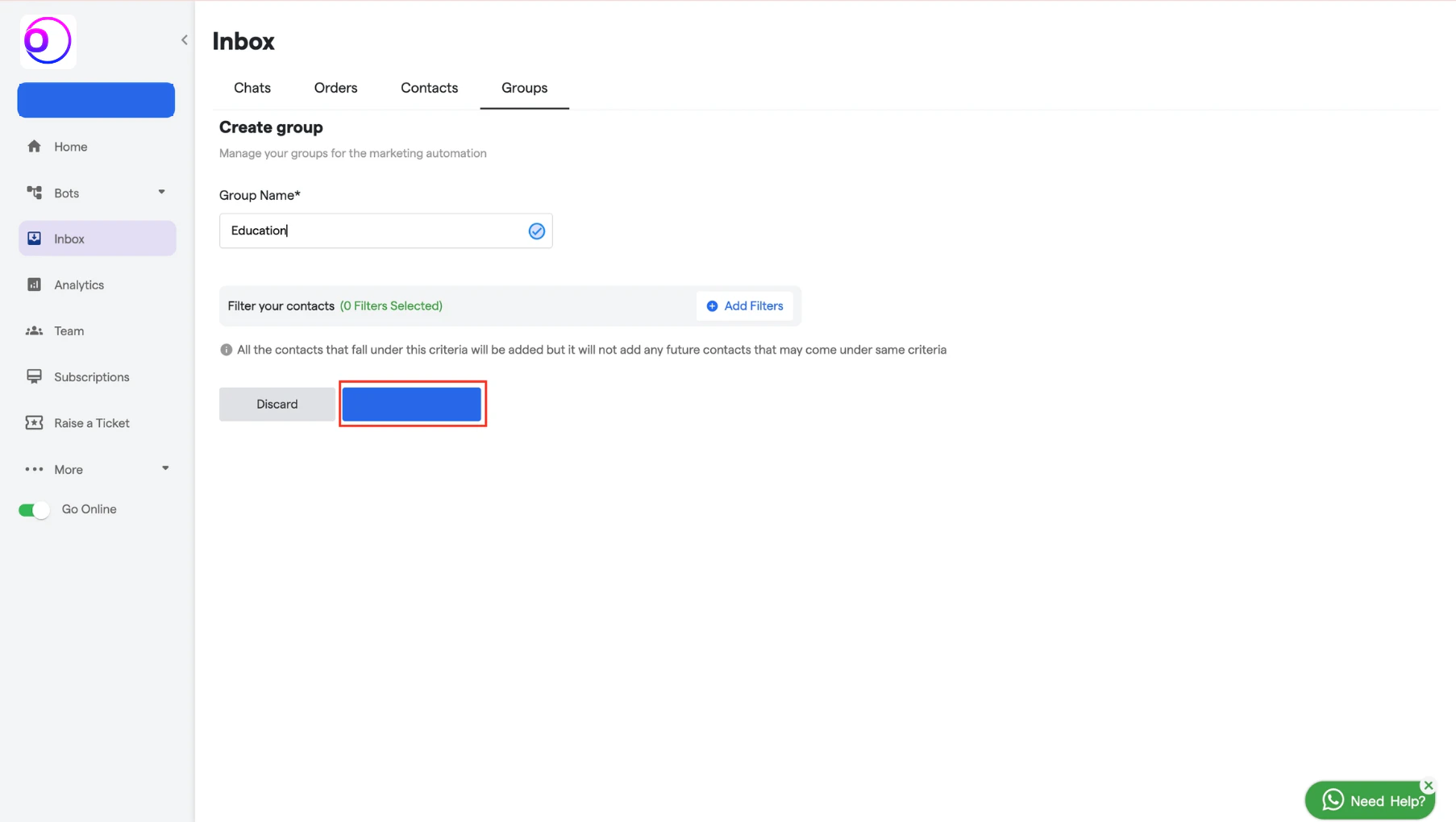 5. **Save the Group**: Once you've added the necessary contacts, save the group, and it will be created.
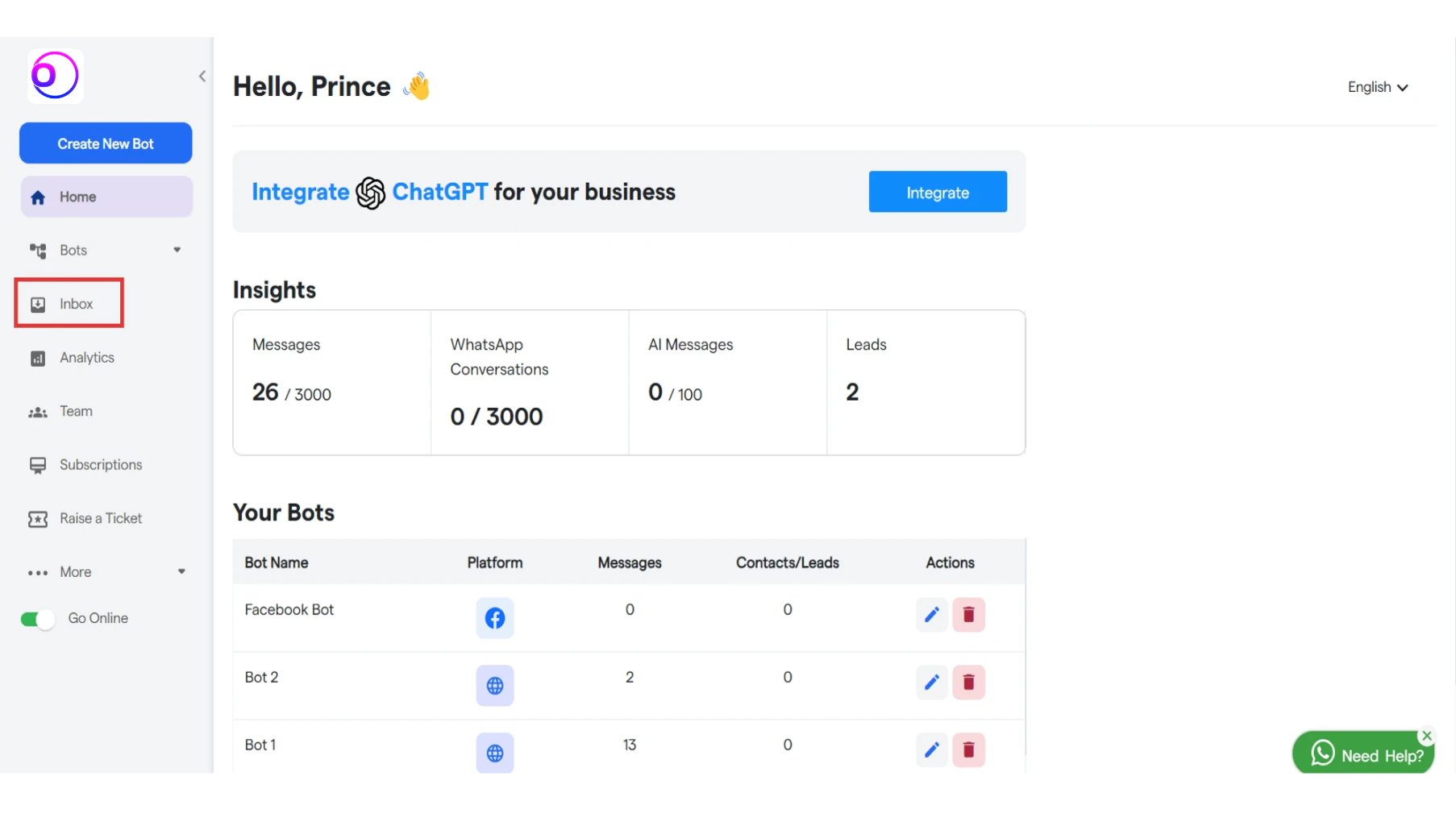 #### **Features in the Groups Section**
* **Filters**: You can use filters in the Groups section to quickly find the group you need.
#### **Features in the Groups Section**
* **Filters**: You can use filters in the Groups section to quickly find the group you need.
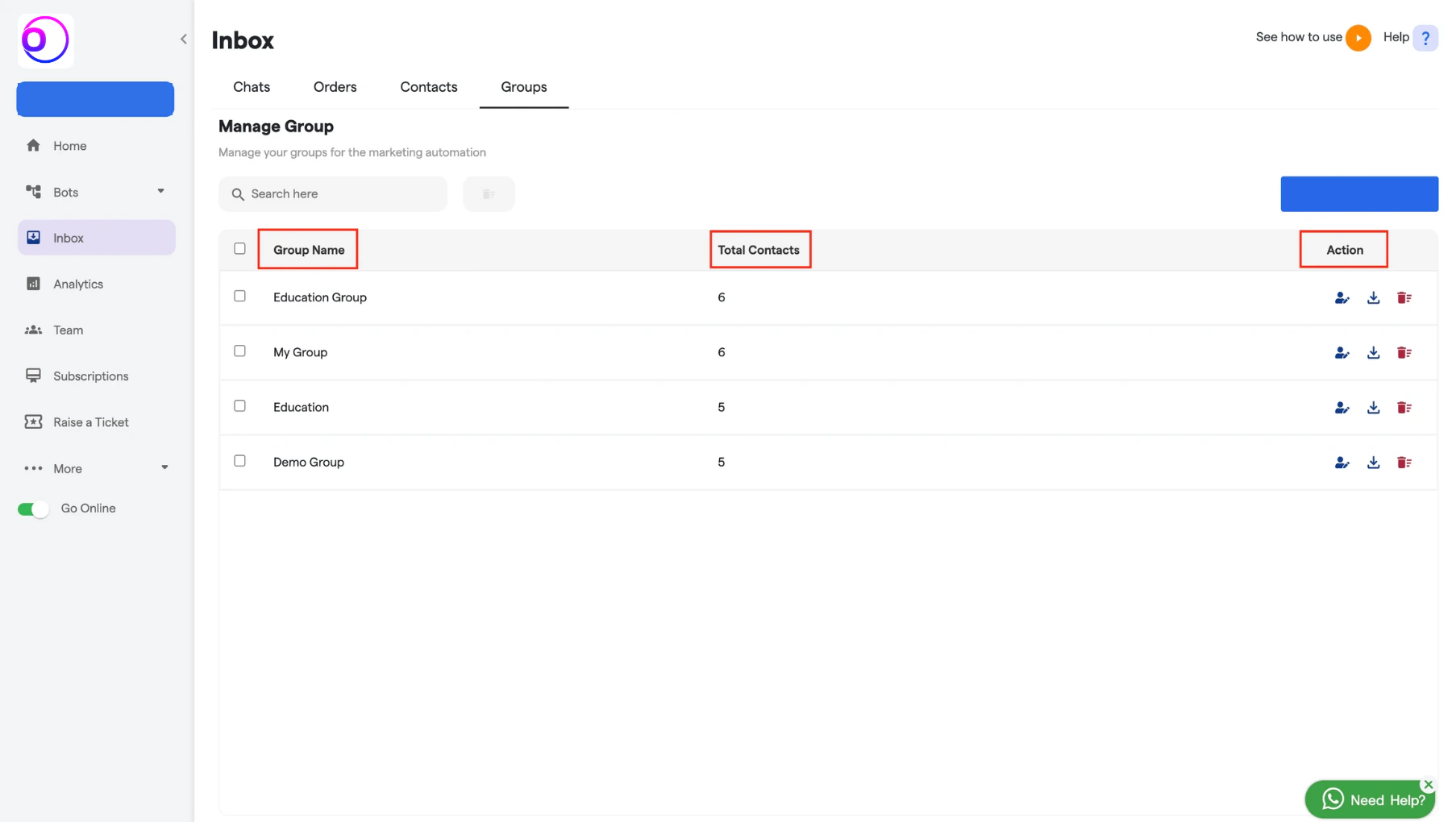
 * **Group Table**: The Groups table displays key details, including the group name, the total number of contacts in each group, and actions you can take on each group.
 #### **Group Actions**
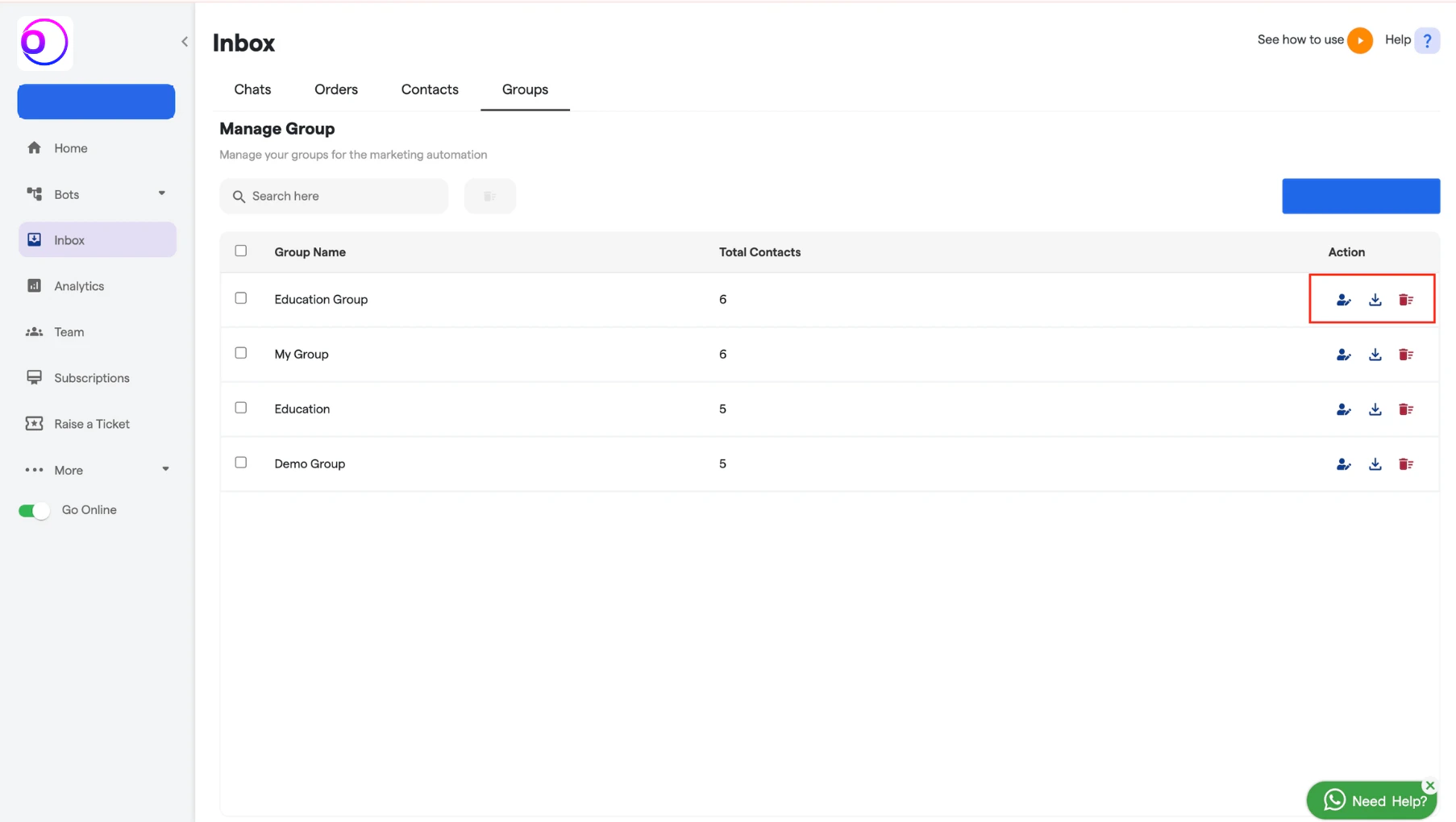
Each group has an **Actions** button that allows you to:
* **Edit the Group**: Modify the group name or update the contact list.
* **Download the Group**: Export the group’s contact list as a file.
* **Delete the Group**: Permanently delete the group if it is no longer needed.
#### **Group Actions**
Each group has an **Actions** button that allows you to:
* **Edit the Group**: Modify the group name or update the contact list.
* **Download the Group**: Export the group’s contact list as a file.
* **Delete the Group**: Permanently delete the group if it is no longer needed.
 This feature allows you to efficiently manage large numbers of contacts with ease and flexibility.