> ## Documentation Index
> Fetch the complete documentation index at: https://omnifit-64.mintlify.site/llms.txt
> Use this file to discover all available pages before exploring further.
# Install Website Chatbot on Squarespace
> This section contains step by step process of how you can install website chatbot on the Squarespace.
Once you have built your e-commerce website on Squarespace, you can elevate the user experience with the OmnifitAI chatbot.
### **Why Squarespace Chatbot?**
Creating a Squarespace chatbot offers several benefits that can significantly enhance your online presence and business operations:
* **24/7 Customer Support:** You can respond instantly to customer inquiries at any time of the day.
* **Increased Engagement**: Chatbots can engage with your audience in real time, sending personalized messages, updates, and promotions.
* **Lead Generation**: By interacting with visitors and taking essential information, chatbots can help generate leads, making it easier to convert potential customers into actual customers.
* **Scalability**: Unlike human agents, chatbots can handle multiple conversations simultaneously.
To create your Squarespace chatbot and manage all your chatbots, you first need to visit the OmnifitAI Dashboard.
### **How to Create Your Squarespace Chatbot?**
1. Follow these quick steps to create your Squarespace chatbot:-
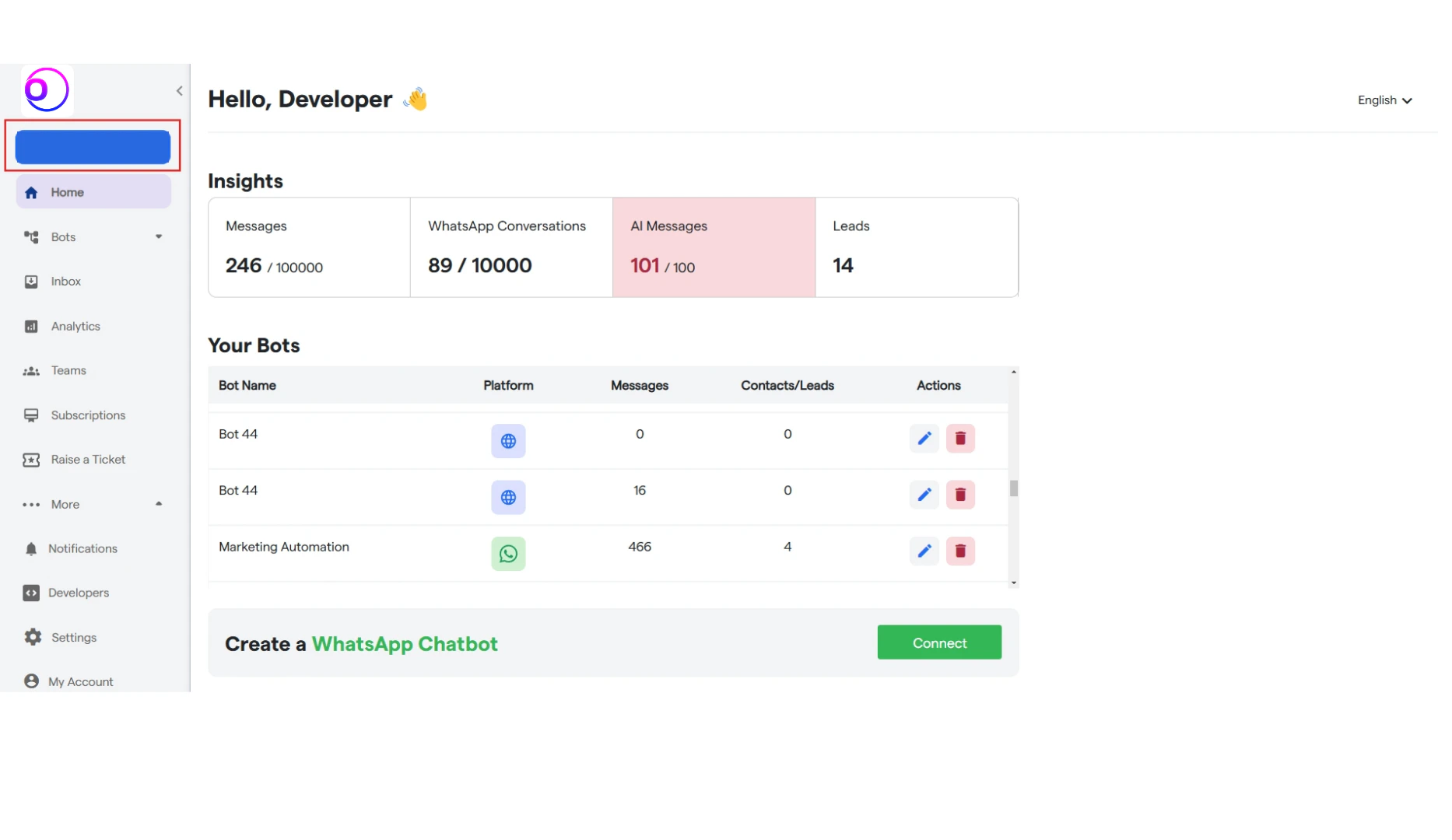
2. To start creating your new chatbot, click **"Create New Bot."**
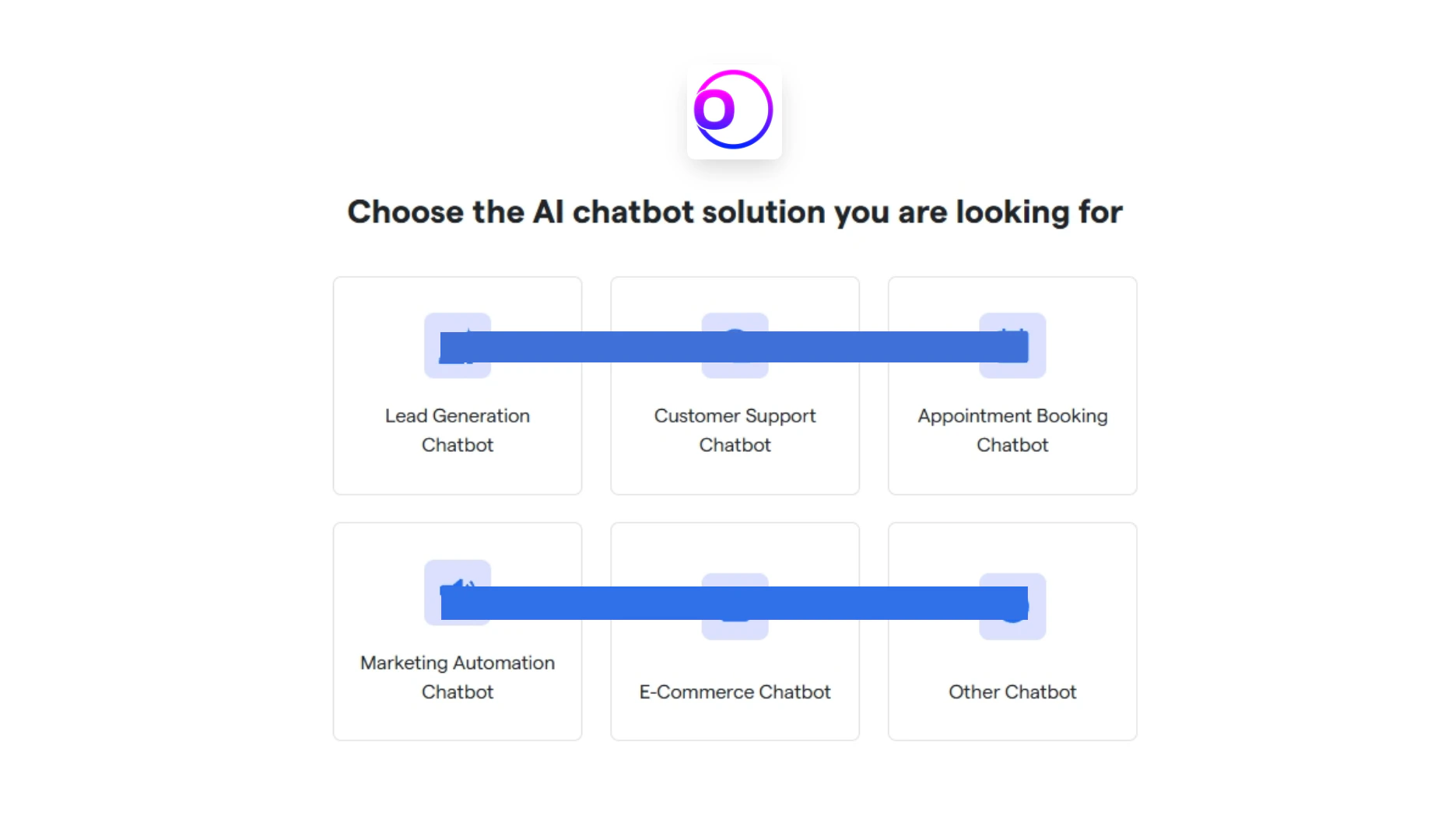
 3. Select the primary purpose for creating your bot and proceed further.
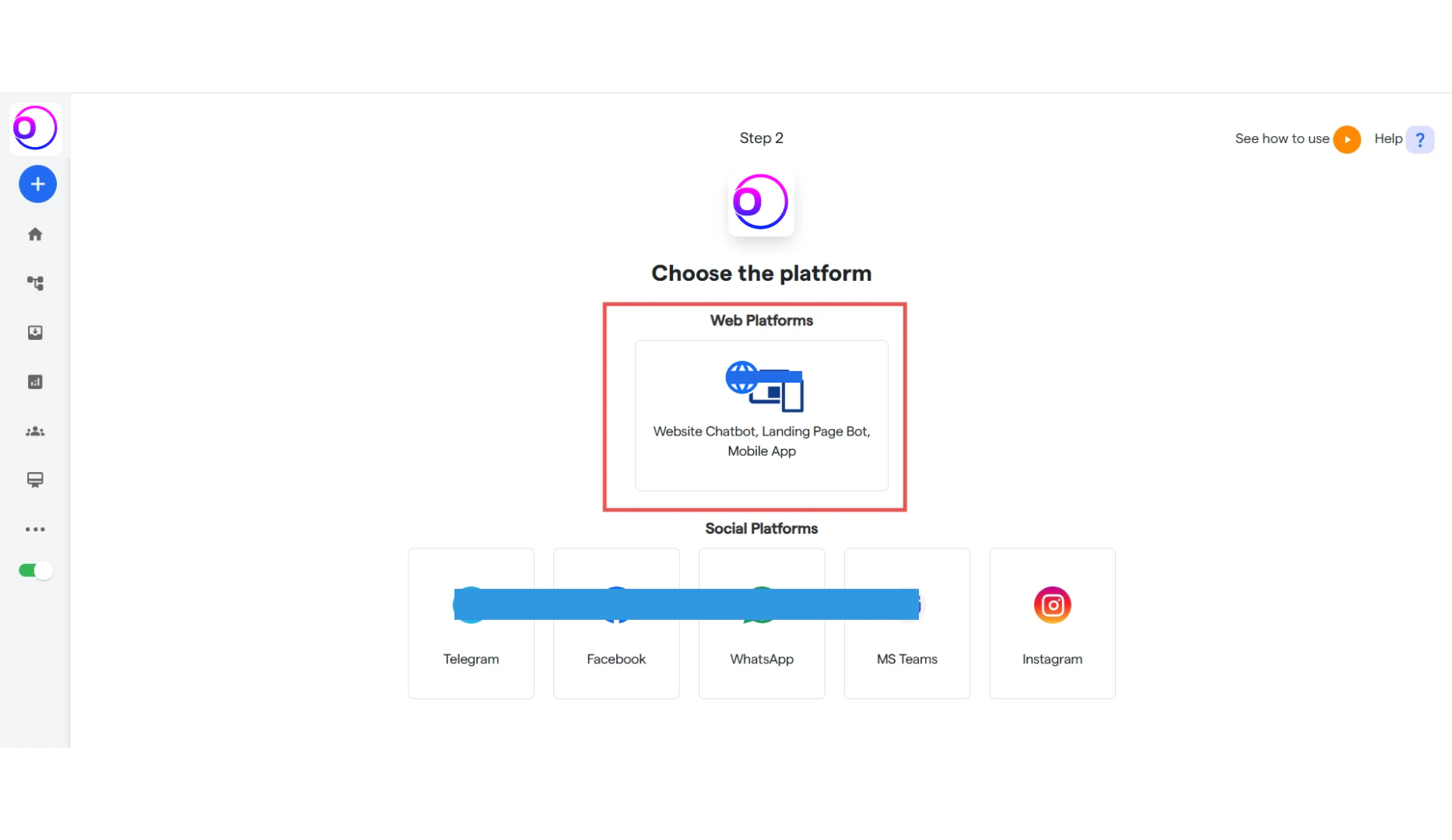
 4. Select the platform: **“Website Chatbot”**
 5. You will see a notification: **"Bot has been successfully created.”**
6. Your bot has been successfully created.
7. Now you need to deploy this chatbot to your Squarespace website.
### **How to Install a Chatbot on Squarespace?**
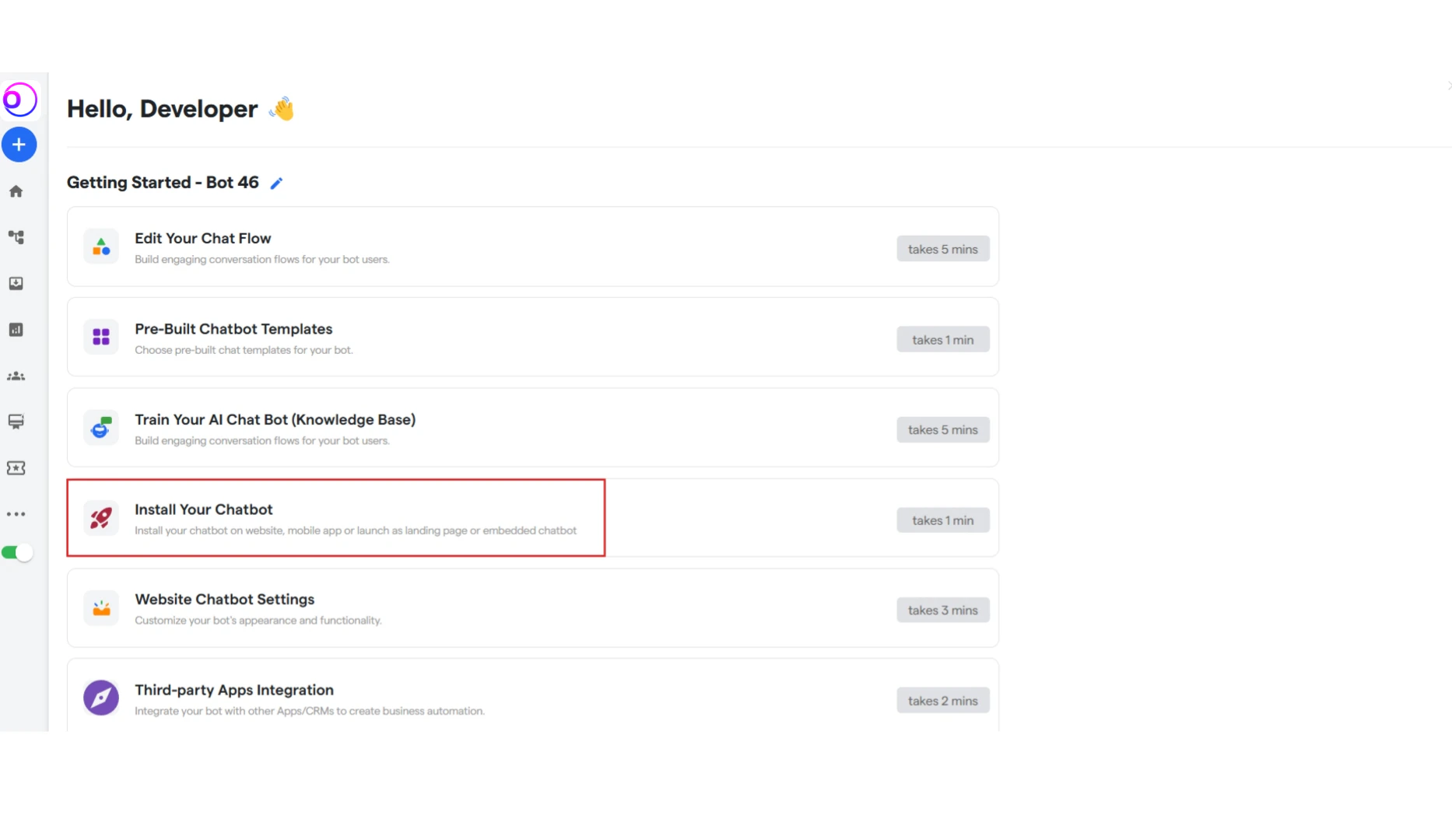
1. To manage your bot, select it from the left sidebar.
2. Now click on **“Install Your Chatbot.”**
5. You will see a notification: **"Bot has been successfully created.”**
6. Your bot has been successfully created.
7. Now you need to deploy this chatbot to your Squarespace website.
### **How to Install a Chatbot on Squarespace?**
1. To manage your bot, select it from the left sidebar.
2. Now click on **“Install Your Chatbot.”**
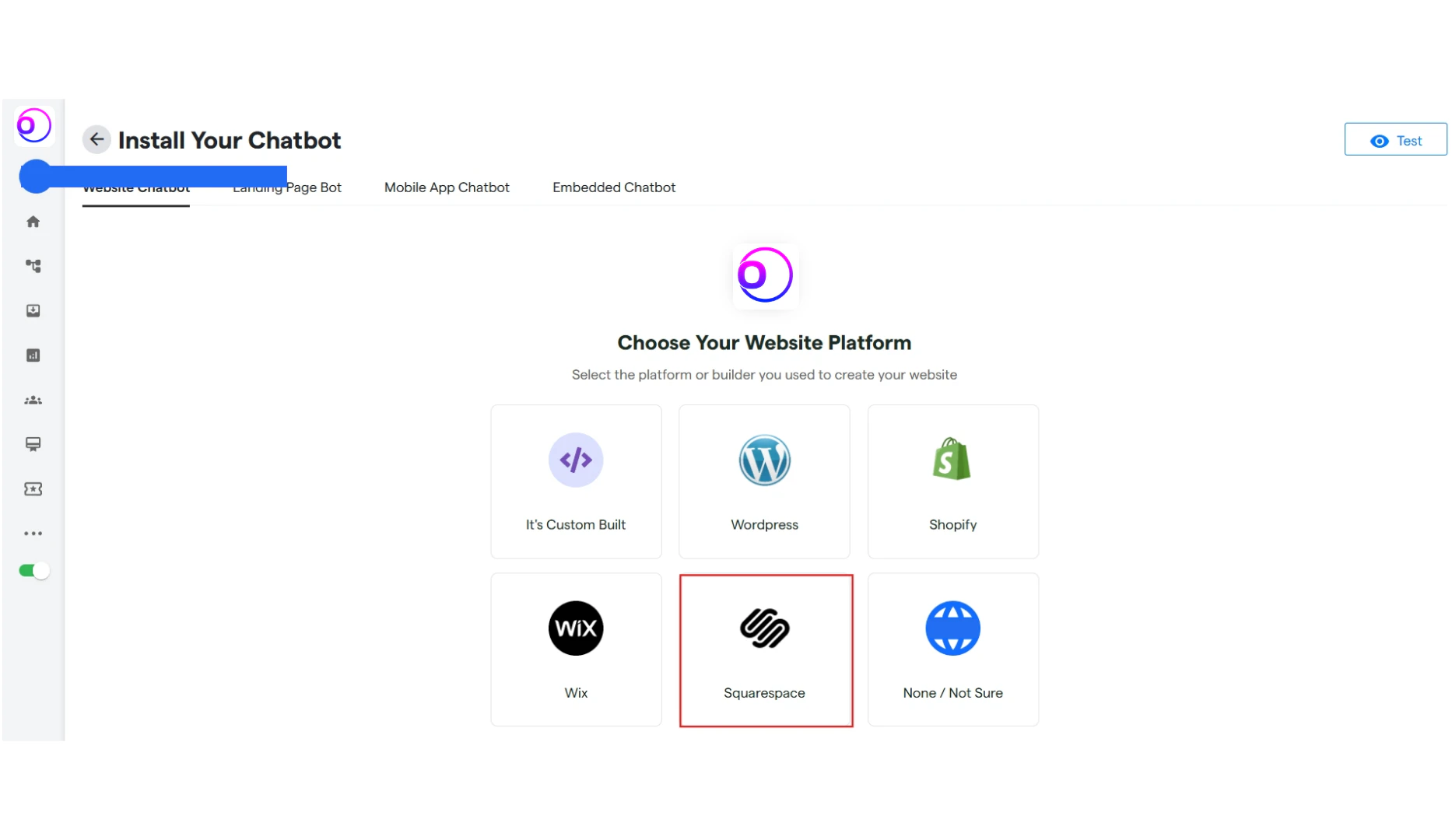
 3. You can select the platform where you need to deploy your chatbot.
4. Click on **“Squarespace”** to install your chatbot on your Squarespace website.
3. You can select the platform where you need to deploy your chatbot.
4. Click on **“Squarespace”** to install your chatbot on your Squarespace website.
 #### **Test Your Chatbot**
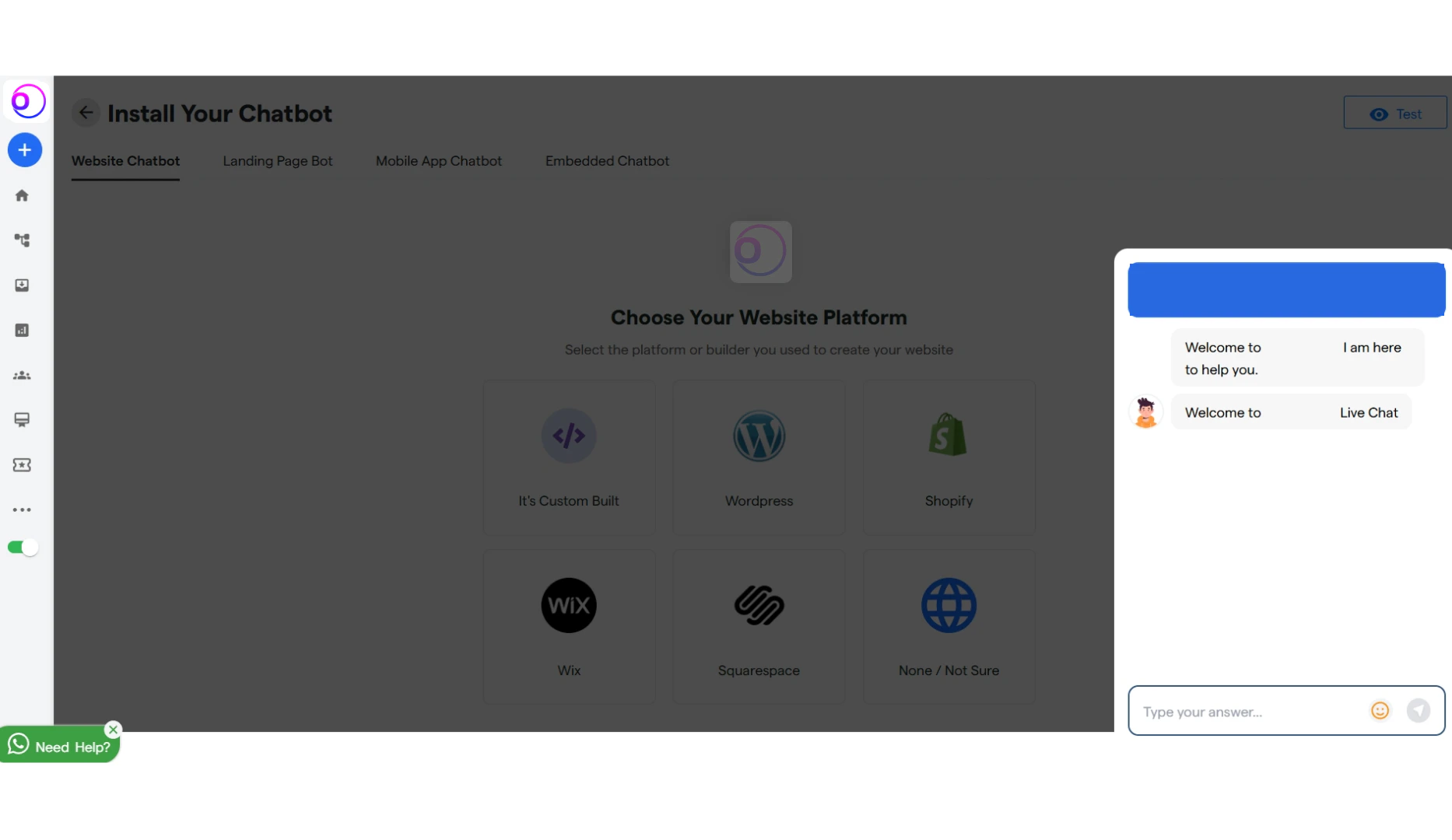
5. To see how your chatbot will function and appear on your Squarespace website and landing page, click the **"Test"** button and select whether you want to test the Website or Landing Page bot.
#### **Test Your Chatbot**
5. To see how your chatbot will function and appear on your Squarespace website and landing page, click the **"Test"** button and select whether you want to test the Website or Landing Page bot.
 6. Now let’s move ahead with the installing part.
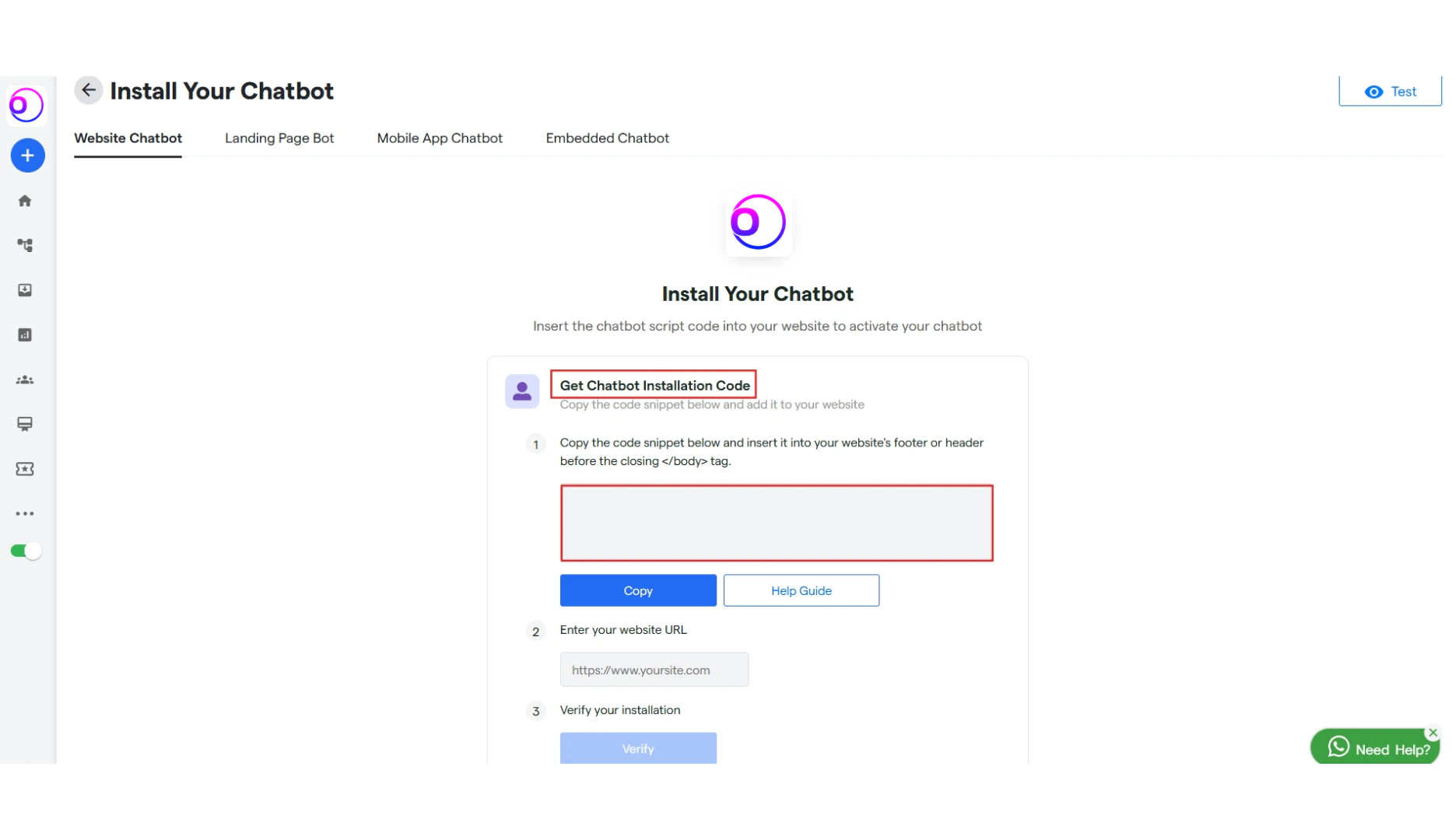 **Get Chatbot Installation code:** From this section, you can directly copy the script code for your chatbot.
**Share Installation code: I**nstallation code will be sent directly to your development team via email.
**Ask OmnifitAI Support:** Our team will assist you in installing your chatbot.
7. Copy the provided snippet and enter your Squarespace website URL for verification. Then, click **“Verify”** to complete the process.
8. Now, paste the copied code into your Squarespace website. Here are the quick steps to follow.
9. Go to your Squarespace website and click on **“ADD SECTION”**
**Get Chatbot Installation code:** From this section, you can directly copy the script code for your chatbot.
**Share Installation code: I**nstallation code will be sent directly to your development team via email.
**Ask OmnifitAI Support:** Our team will assist you in installing your chatbot.
7. Copy the provided snippet and enter your Squarespace website URL for verification. Then, click **“Verify”** to complete the process.
8. Now, paste the copied code into your Squarespace website. Here are the quick steps to follow.
9. Go to your Squarespace website and click on **“ADD SECTION”**
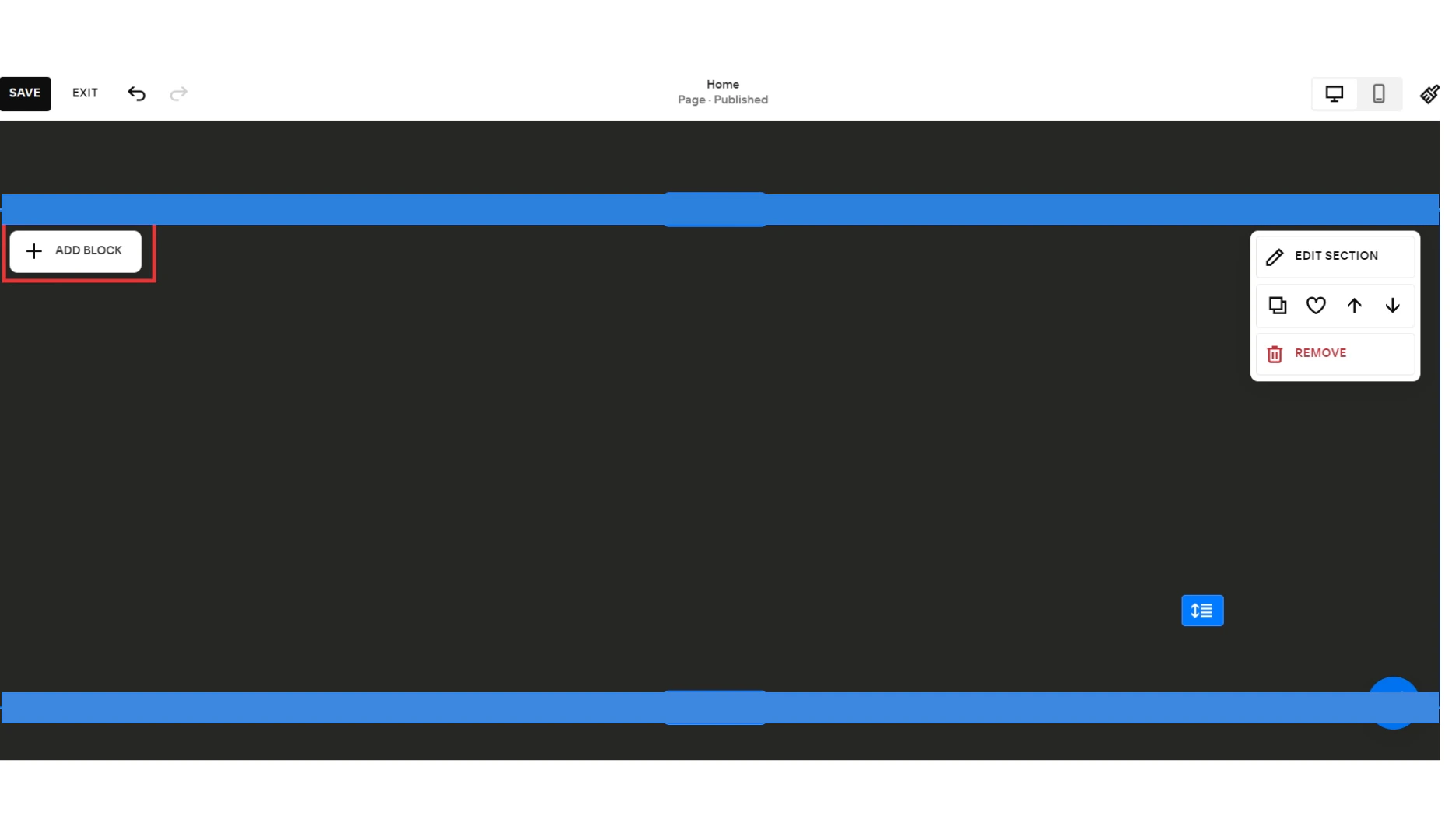
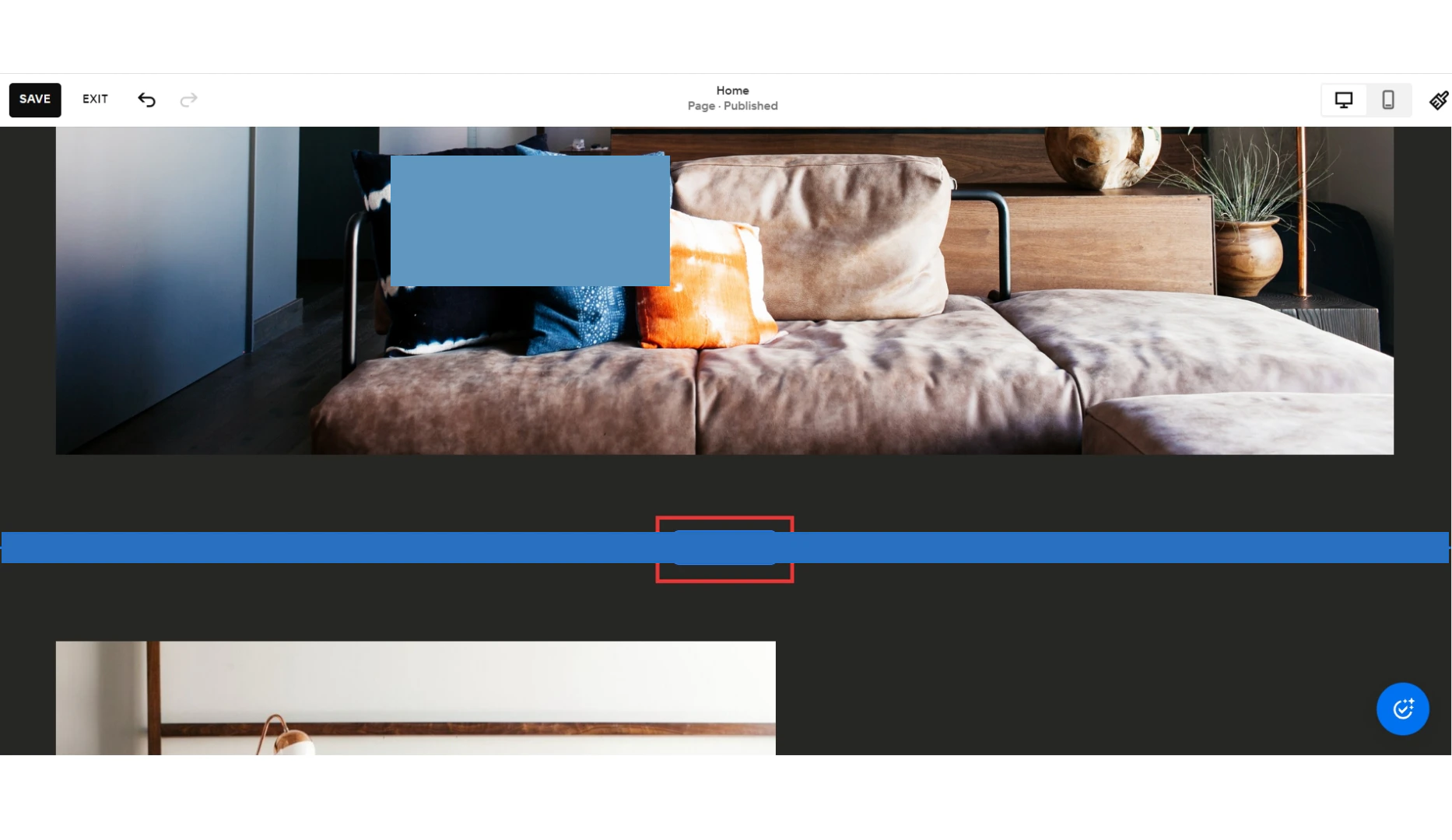 10. Then, click on **“ADD BLOCK”**
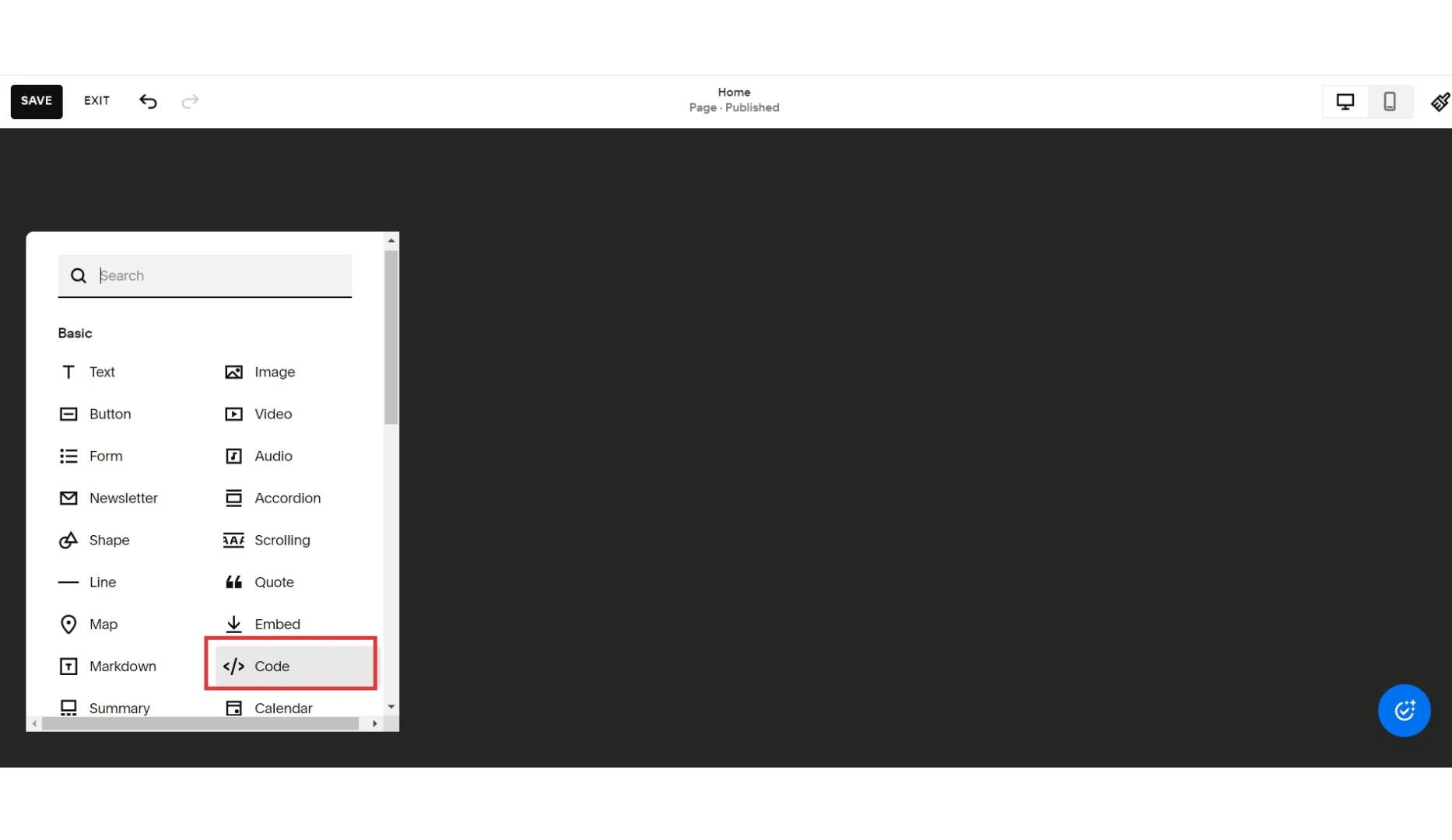
 11. Select the **“Code”** block, to start entering your copied code.
 12. Add your copied HTML code here.
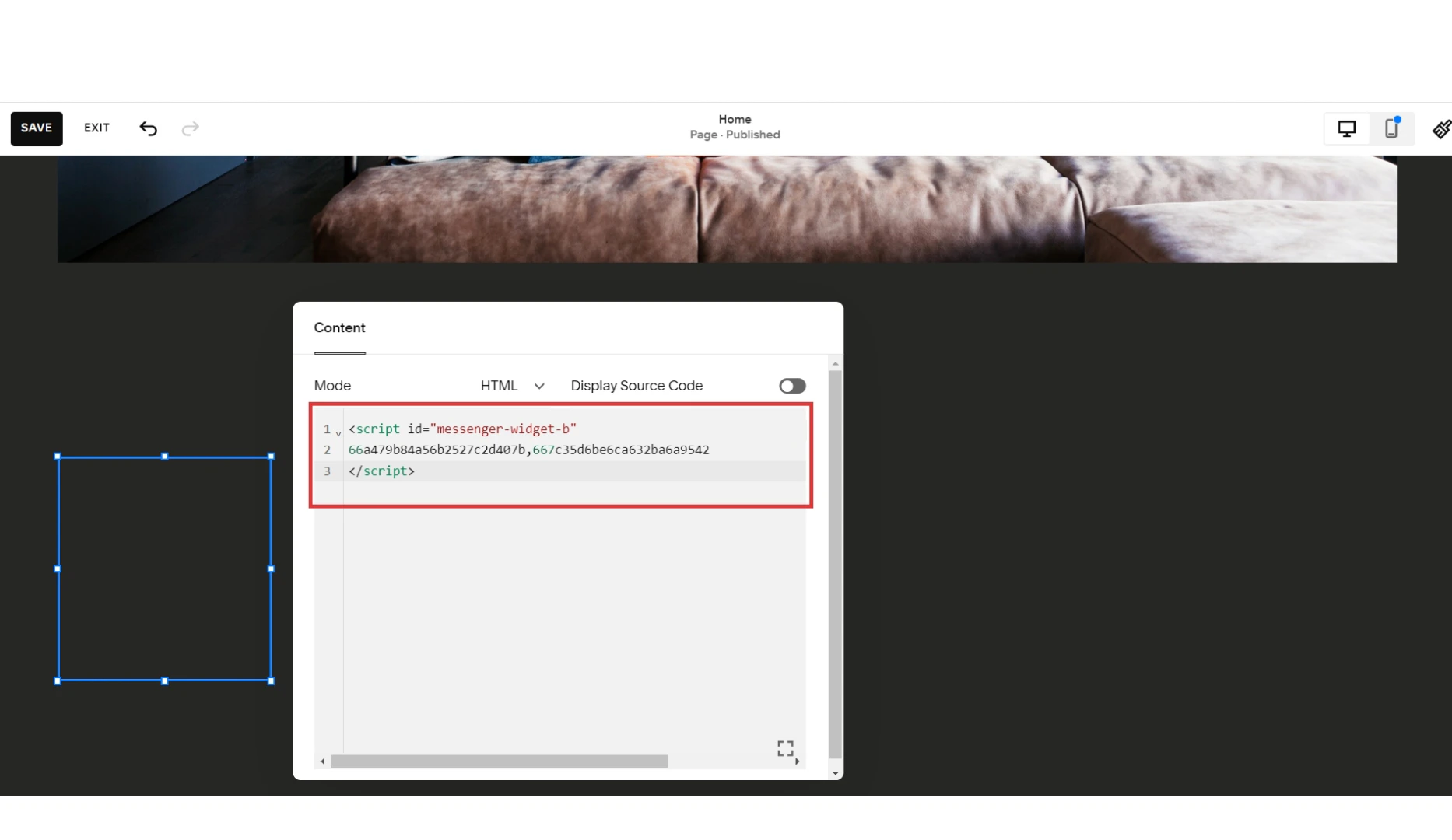 And you have successfully added your chatbot to your Squarespace website.