> ## Documentation Index
> Fetch the complete documentation index at: https://omnifit-64.mintlify.site/llms.txt
> Use this file to discover all available pages before exploring further.
# Alerts
> This page contains all the necessary details about the Alerts section of the Whatsapp bot settings
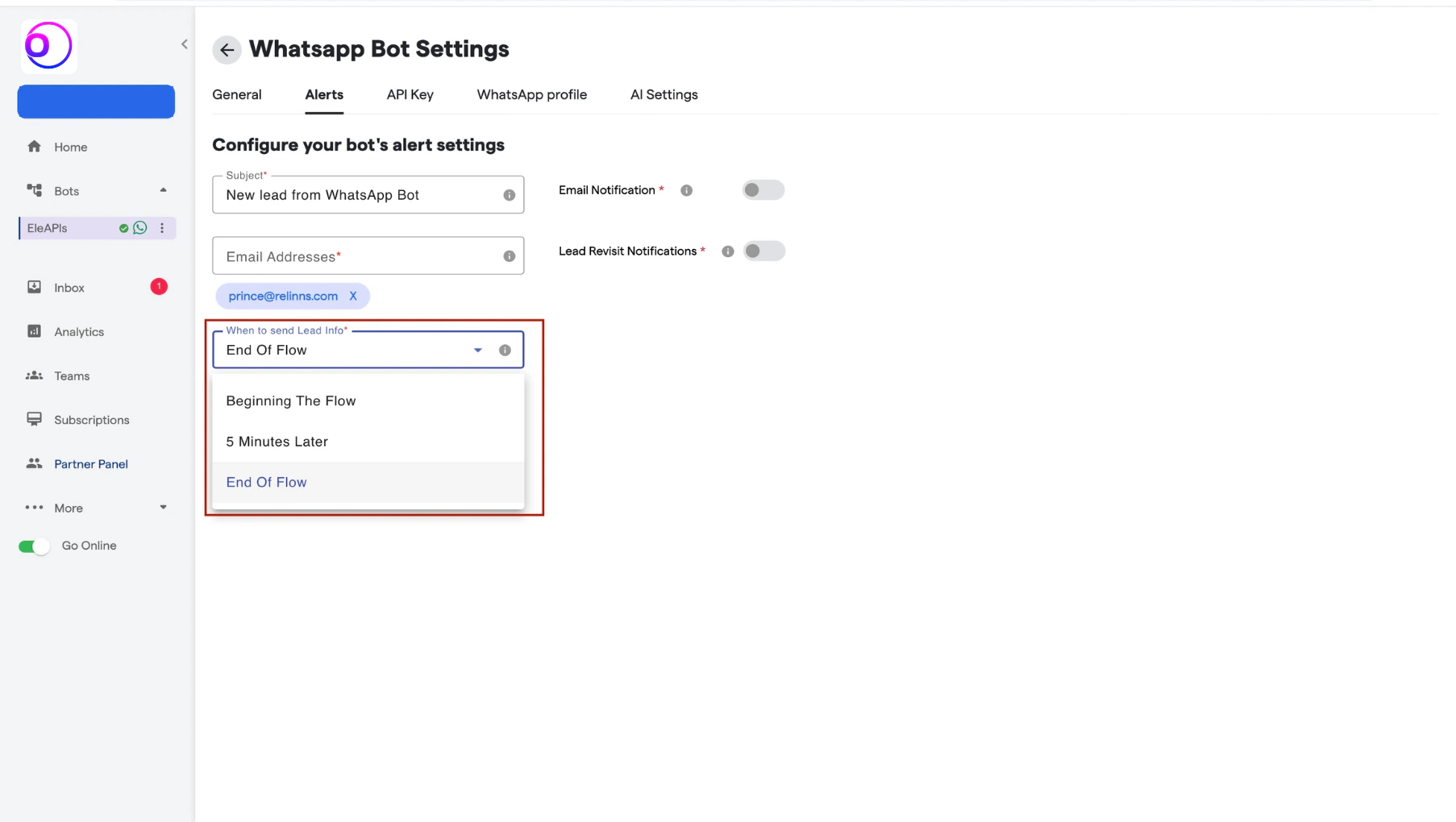
The **Alerts** section allows you to configure email notifications for lead interactions with your chatbot. Here’s how you can set it up:
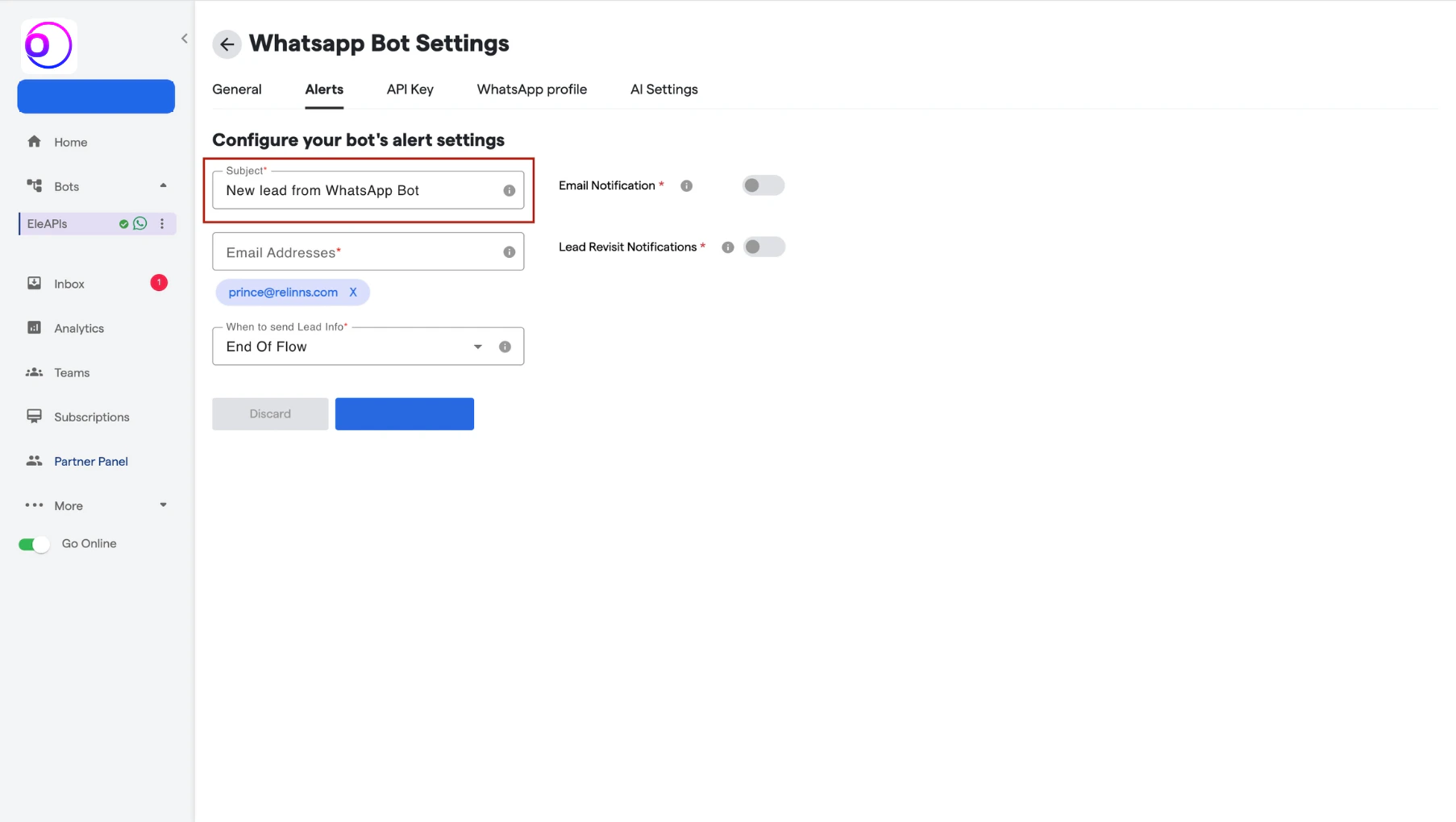
1. **Email Subject Field**:
* Enter the subject line for the email notifications. This will be the title of the email you receive when a new lead interacts with the bot.
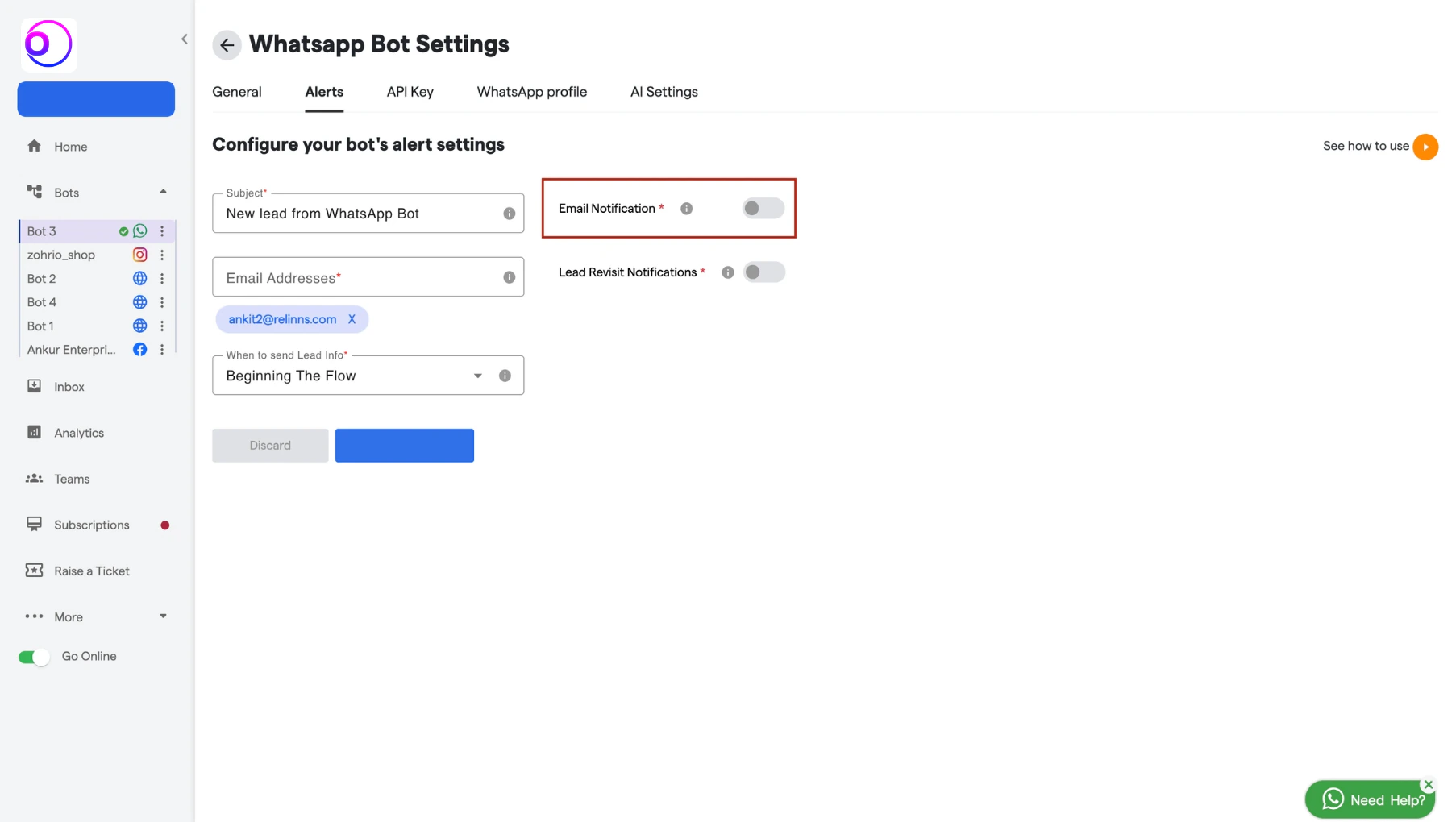
 2. **Email Notifications Toggle**:
* Use this toggle to enable or disable email notifications. When enabled, you will receive an email whenever a new lead interacts with the bot.
2. **Email Notifications Toggle**:
* Use this toggle to enable or disable email notifications. When enabled, you will receive an email whenever a new lead interacts with the bot.
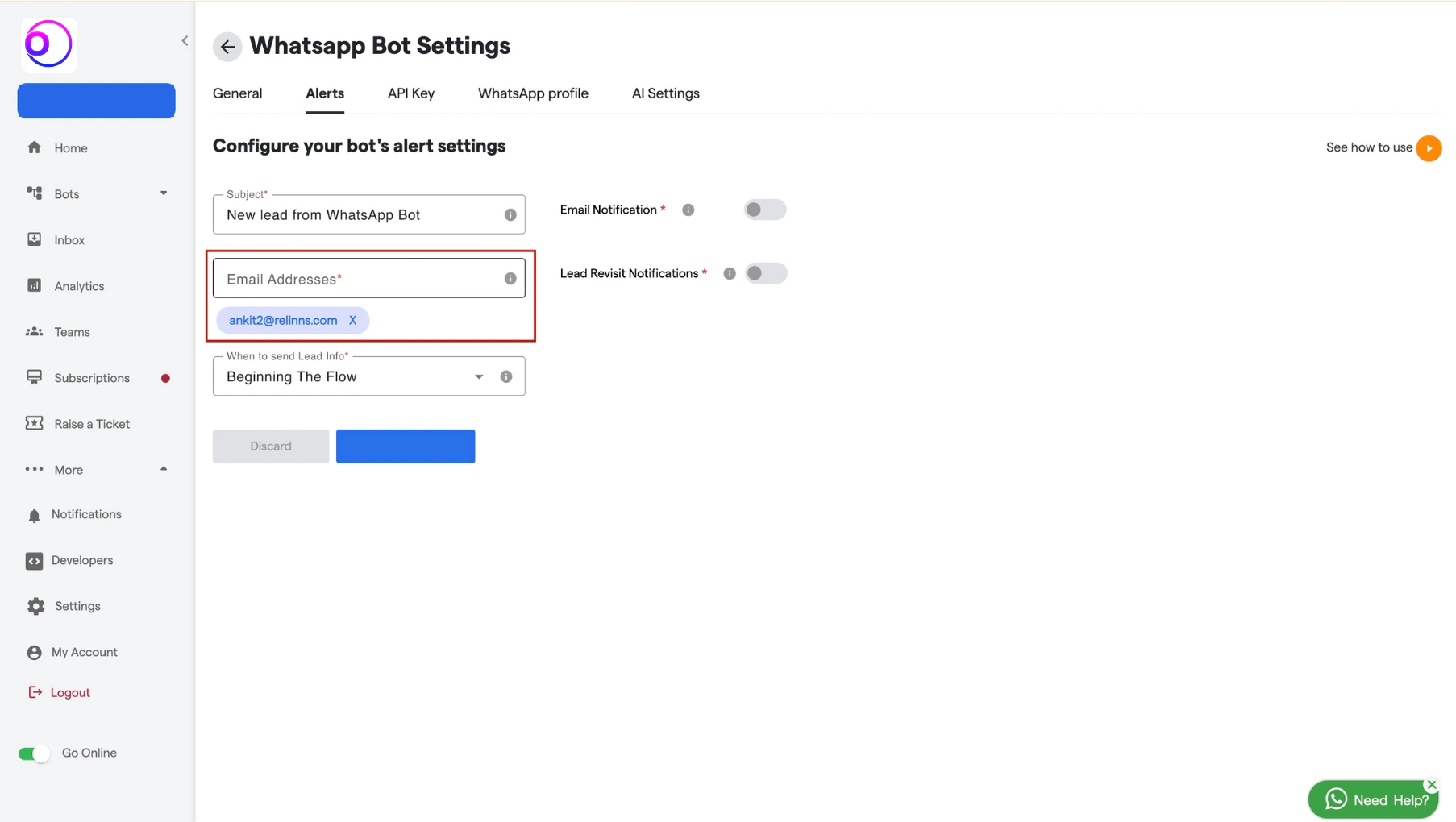
 3. **Email Address Field**:
* Add the email addresses where you want to receive notifications.
* You can add multiple email addresses by typing each one and pressing **Enter**.
3. **Email Address Field**:
* Add the email addresses where you want to receive notifications.
* You can add multiple email addresses by typing each one and pressing **Enter**.
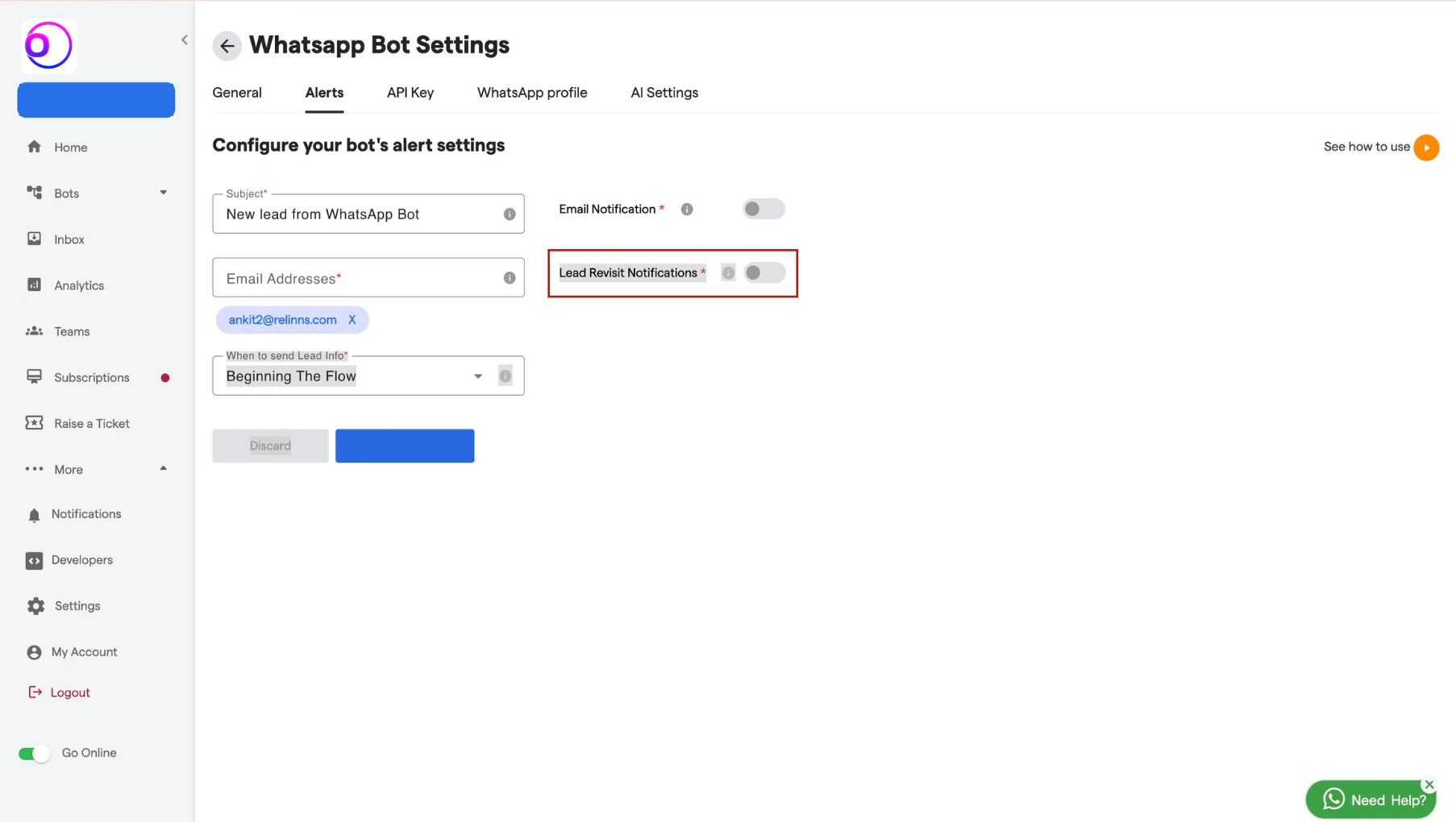
 4. **Lead Revisit Notifications Toggle**:
* Enable this toggle to receive notifications when a lead revisits and interacts with the bot.
* For example, if a lead interacts with the bot, leaves, and then returns later, you will receive a notification about their revisit.
4. **Lead Revisit Notifications Toggle**:
* Enable this toggle to receive notifications when a lead revisits and interacts with the bot.
* For example, if a lead interacts with the bot, leaves, and then returns later, you will receive a notification about their revisit.
 5. **When to send Lead info** Here you can customize that when should the email notification should be triggerd wether: a. Begining of the flow b. 5 minutes later. c. End of the flow
 6. **Save Changes**:
* Click the **Save Changes** button to apply your settings. Your email notifications will now be active as per your configuration.
6. **Save Changes**:
* Click the **Save Changes** button to apply your settings. Your email notifications will now be active as per your configuration.